
Toolbar
The toolbar is the orange bar at the top of TheFlex. It gives users and administrators quick access to the most important functions without having to dive into the settings.
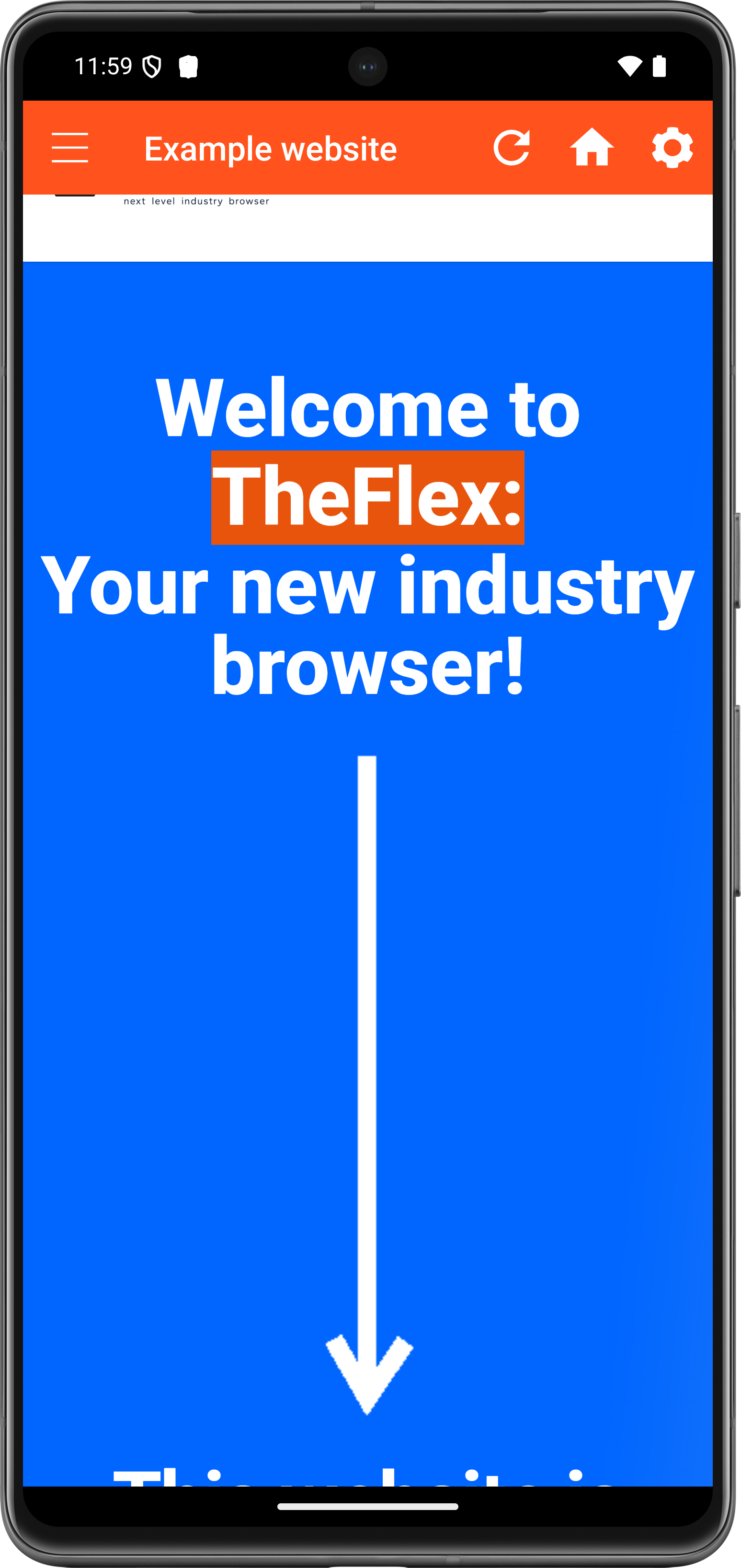
Buttons
| Button | Function |
|---|---|
| Menu icon (left) | Opens the start page switcher - either the classic list or the menu navigation, depending on the configuration |
| Reload | Reloads the current page |
| Settings | Opens the TheFlex settings |
| Close (optional) | Closes the app - only visible when the Show exit button setting is active |
| Printer disconnect (conditional) | Appears when a Zebra printer is connected; disconnects it |
| Scanner connect / disconnect (conditional) | Appears when an external scanner (NIMMSTA / ProGlove) is configured |
Settings
Show exit button
By default there is no close button in the toolbar. This is intentional: in a production environment users should not be able to accidentally close the browser.
If a close button is needed - for example in test environments or demo devices - it can be activated under Settings → User interface → Show exit button. When tapped, a confirmation dialog appears before the app closes.
Toolbar overlap
By default the toolbar lies over the web content. The content area uses the full screen height and the toolbar sits on top of it.
If this causes problems because the website's own header is hidden under the toolbar, the overlap can be disabled under Settings → User interface → Toolbar overlap off. The toolbar then pushes the content down instead of overlapping it.
Recommendation
Leave the overlap active whenever possible - it keeps the maximum screen area available for the application. Only disable it if the website's own navigation is being cut off.
Note
The toolbar can be temporarily hidden by tapping the content area once. A double tap brings it back.