
Intent-based Scanning for Zebra, Honeywell, CipherLab, Datalogic, and Keyence
What is intent-based scanning and what are its advantages?
With intent-based scanning, barcode data is not sent as keyboard input to the current field, but instead is delivered directly to the app via Android Intent. This enables reliable, fast, and targeted processing of scans - without focus issues, duplicate inputs, or swapped characters.
Recommendation
Intent-based scanning is the recommended scan method for all TheFlex installations. It eliminates the issues caused by keyboard-based (wedge) output.
Zebra (DataWedge)
- Open the DataWedge app.
- Select the desired profile.
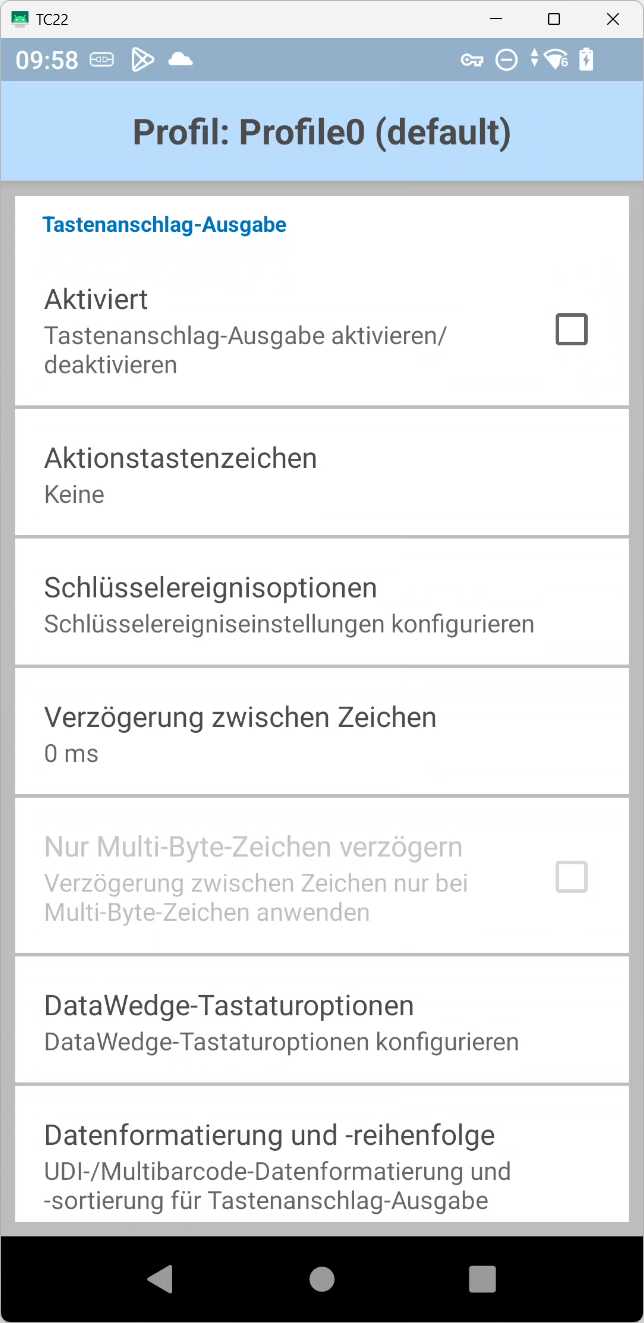
- Disable Keystroke Output.
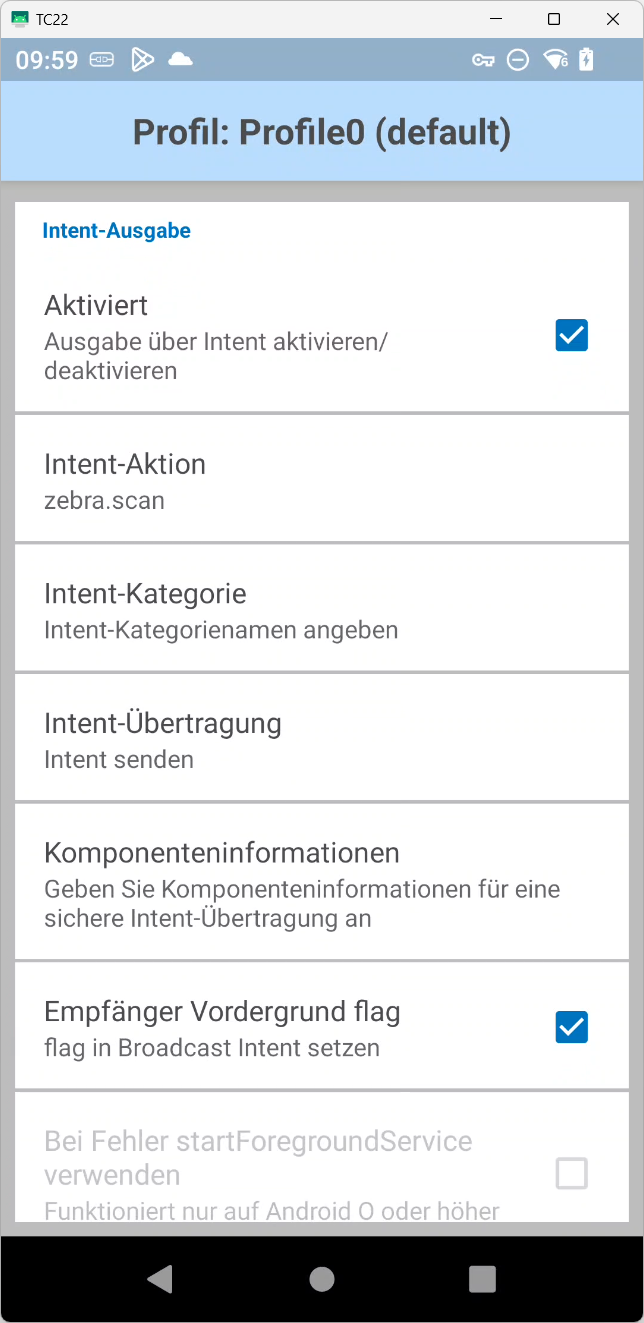
- Enable Intent Output and configure:
- Action:
zebra.scan - Intent delivery: Send Intent
- Action:
Honeywell
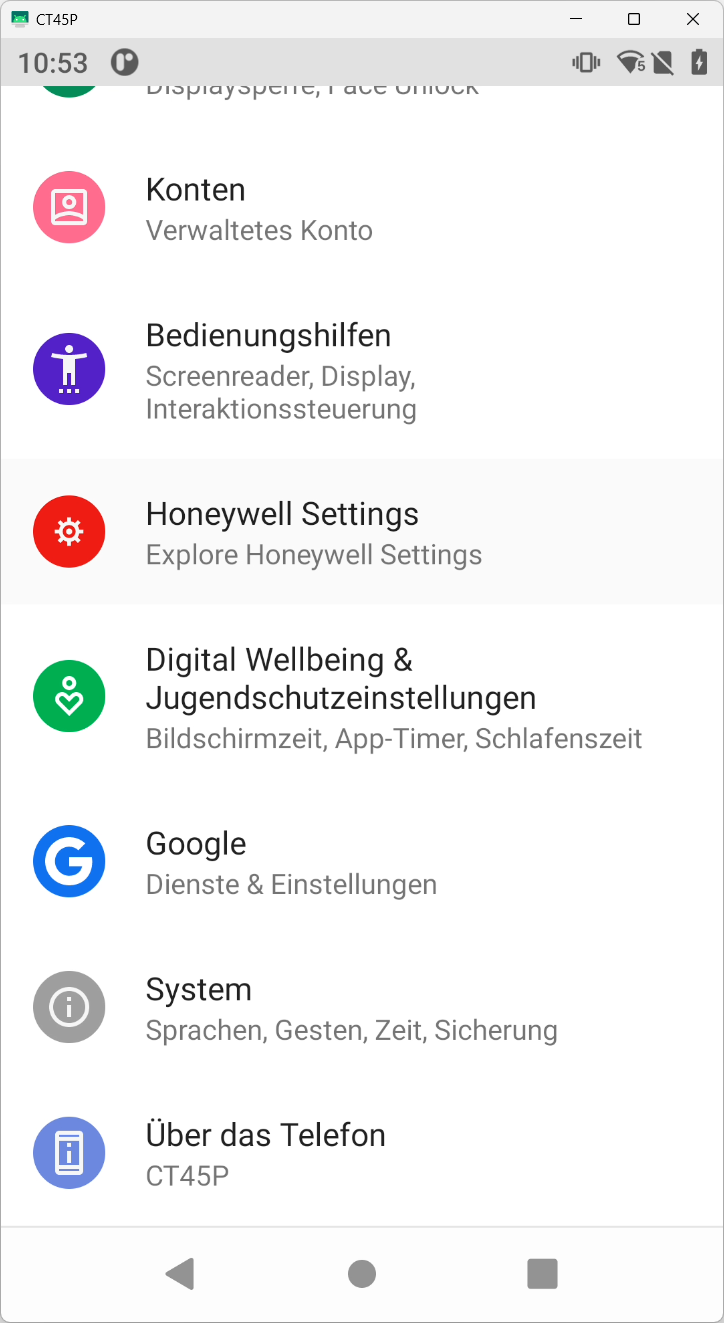
- Open Android Settings.
- Go to Honeywell Settings.
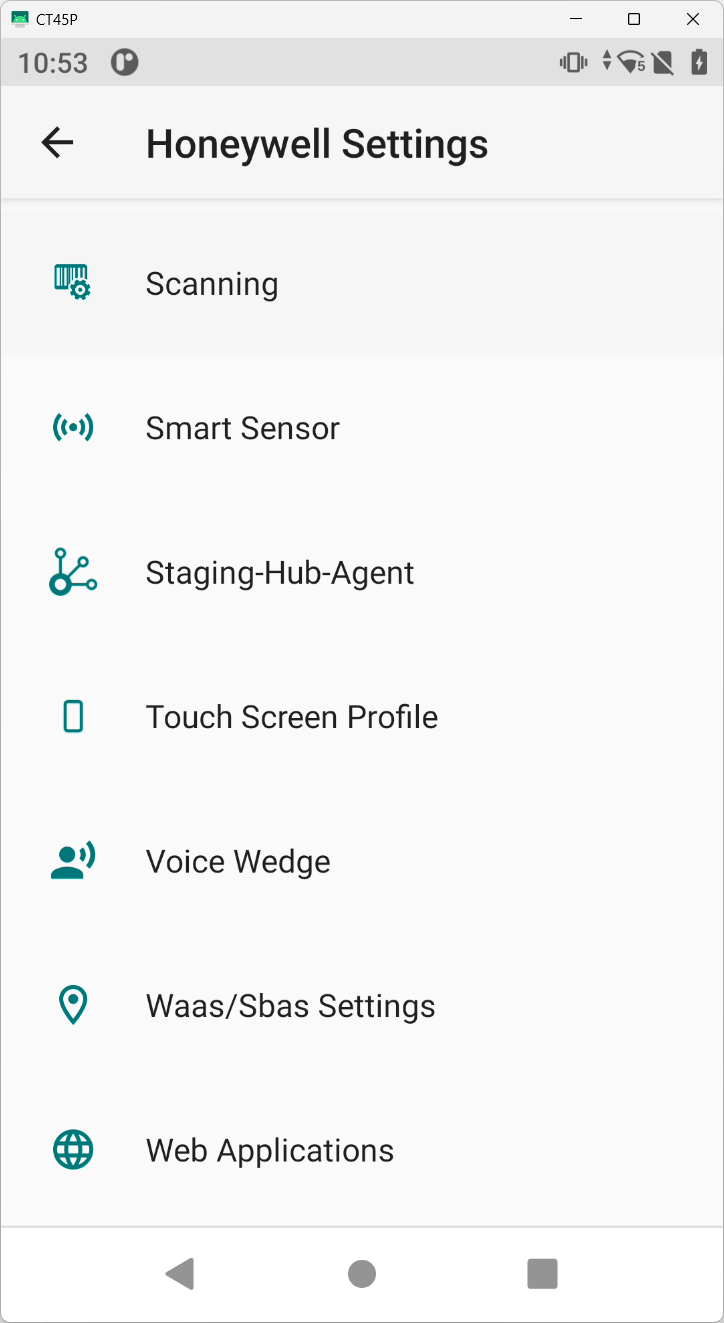
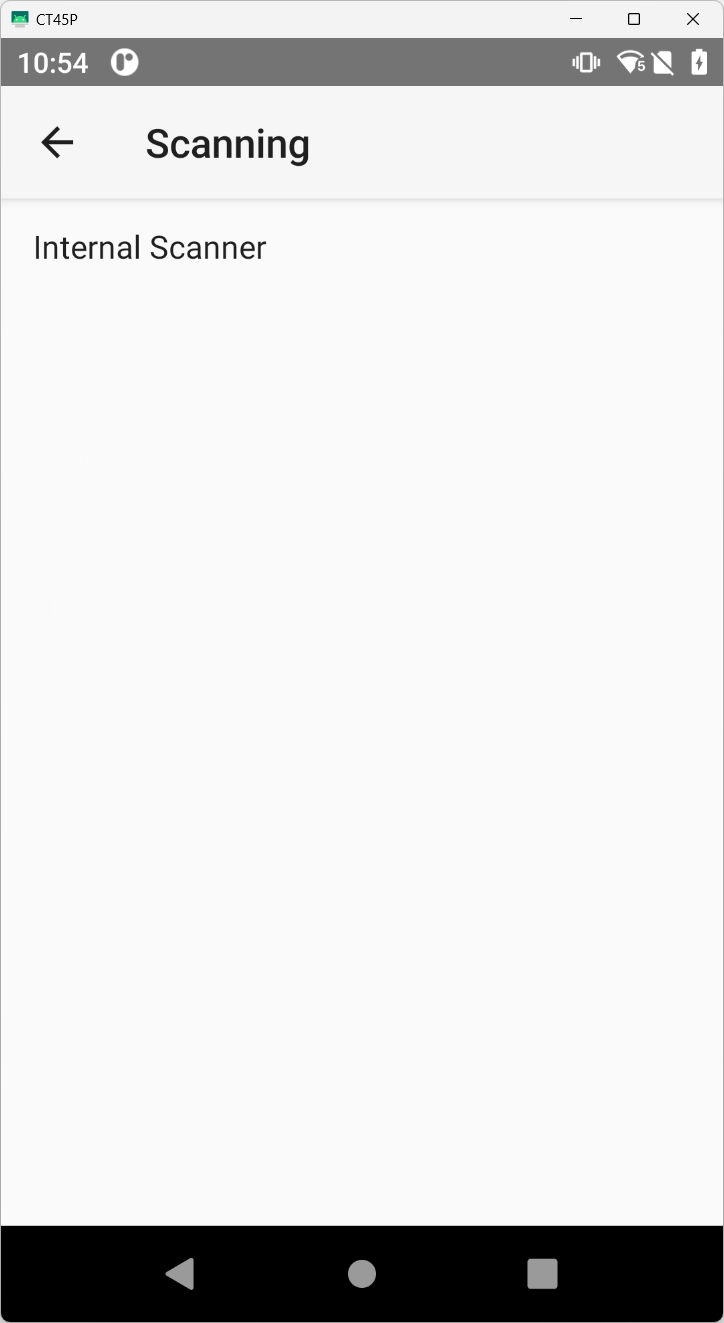
- Open Scanning.
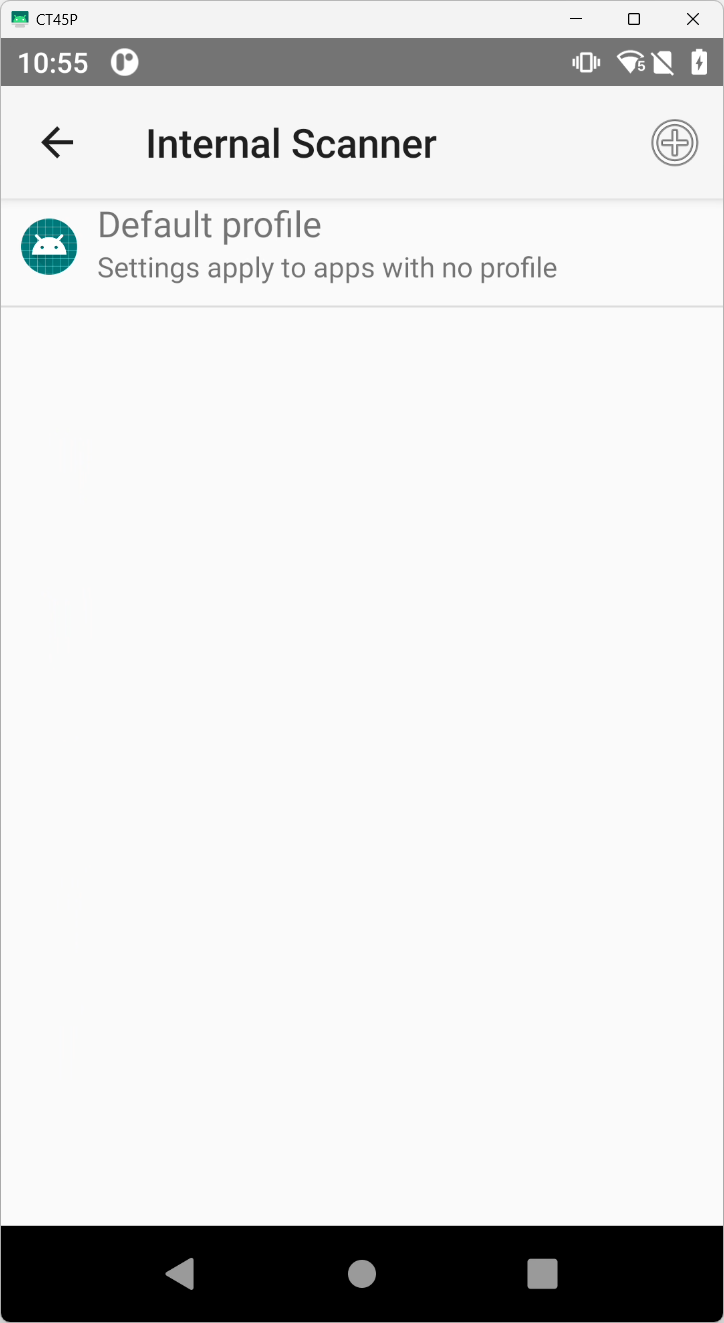
- Select your scanner, then select the desired profile.
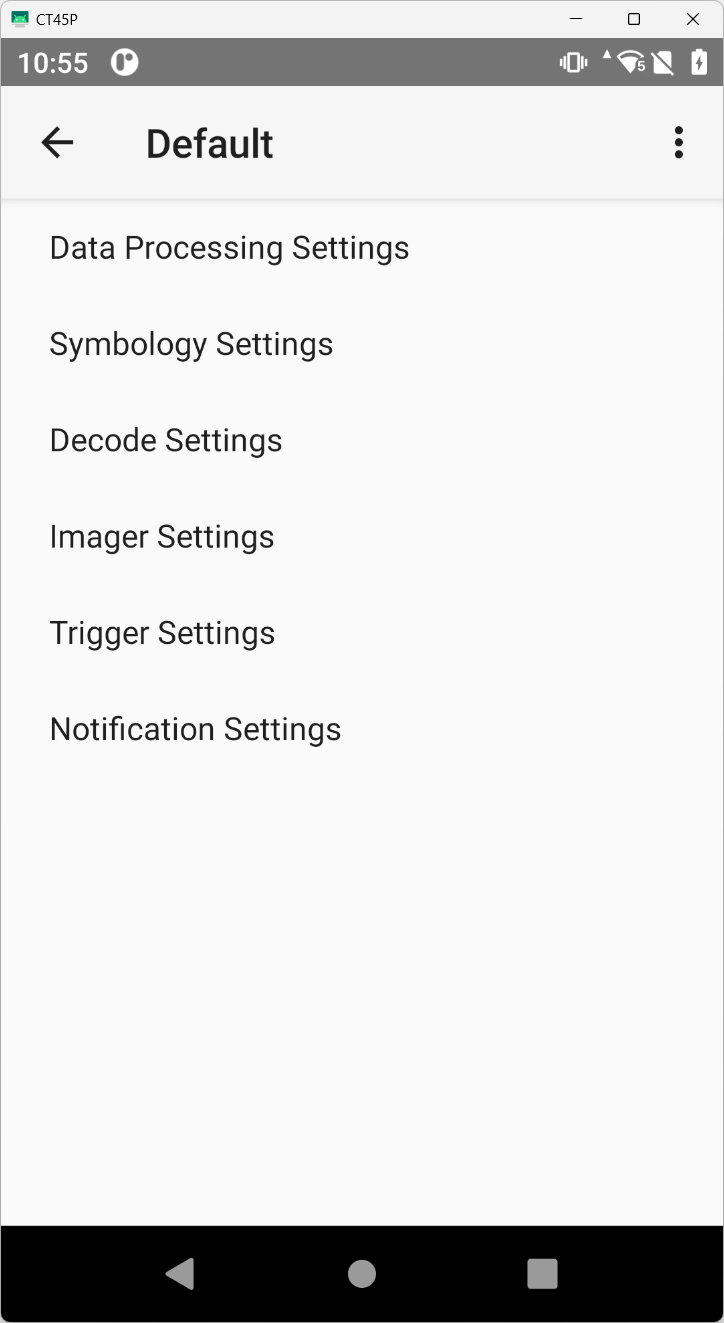
- Open Data Processing Settings.
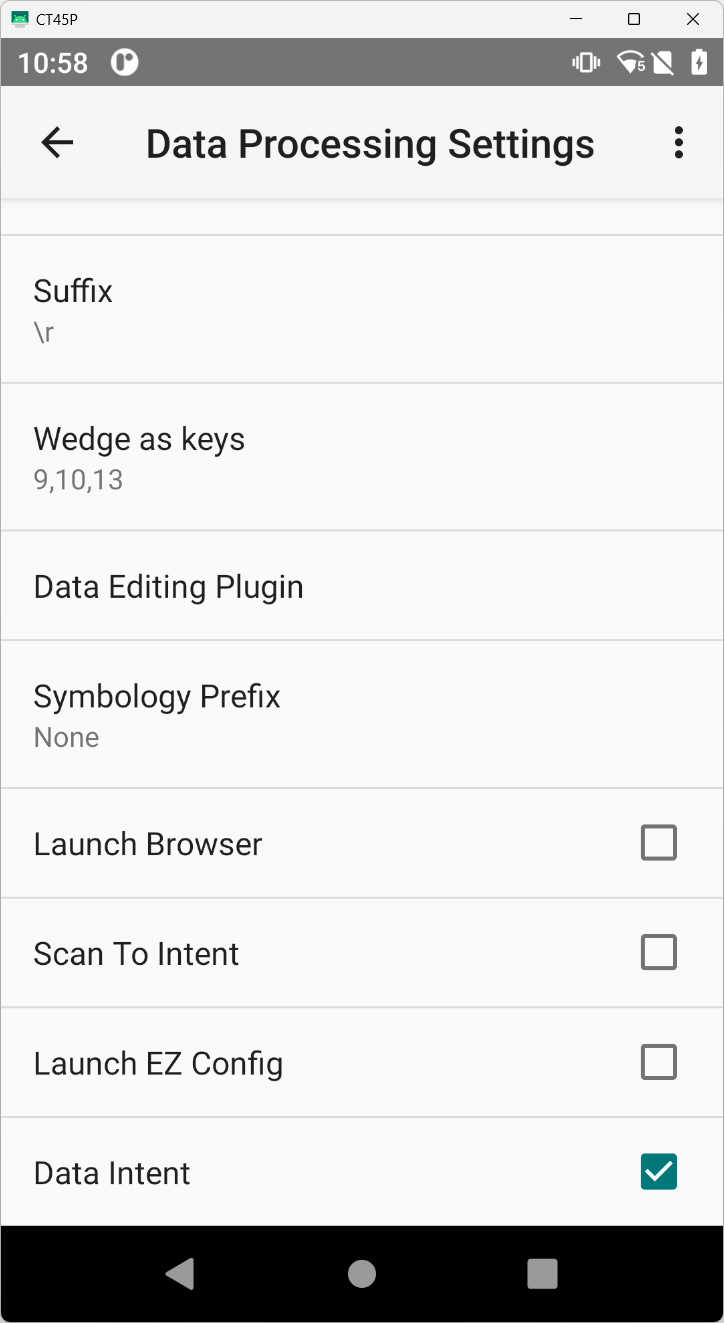
- Set Wedge to off (disables keyboard output).
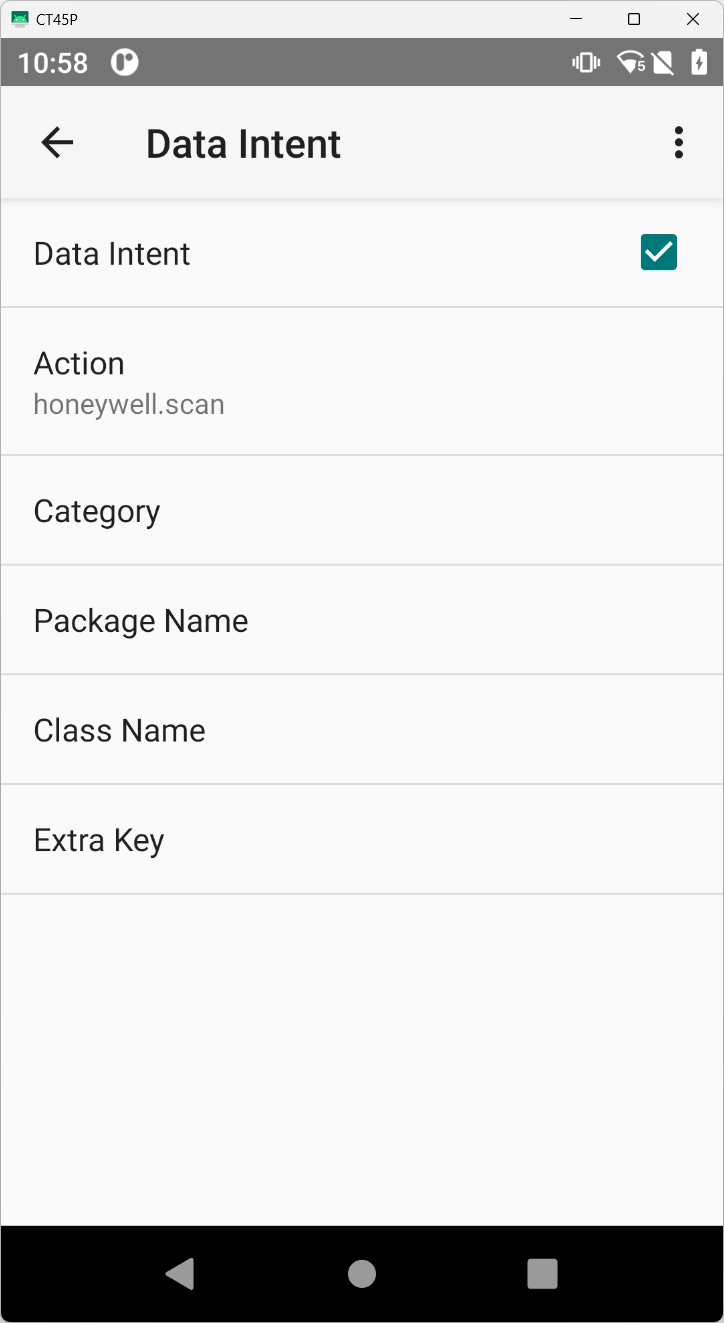
- Tap Data Intent and enable it.
- Action:
honeywell.scan
- Action:
CipherLab
- Start the Reader Config app.
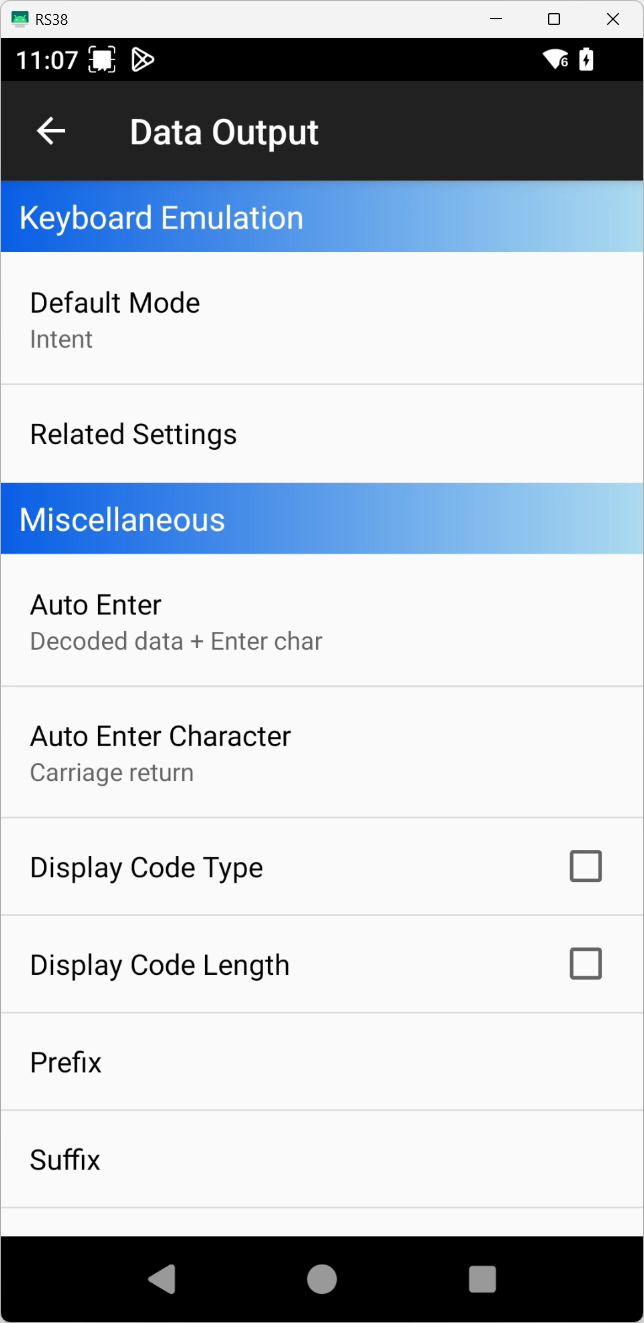
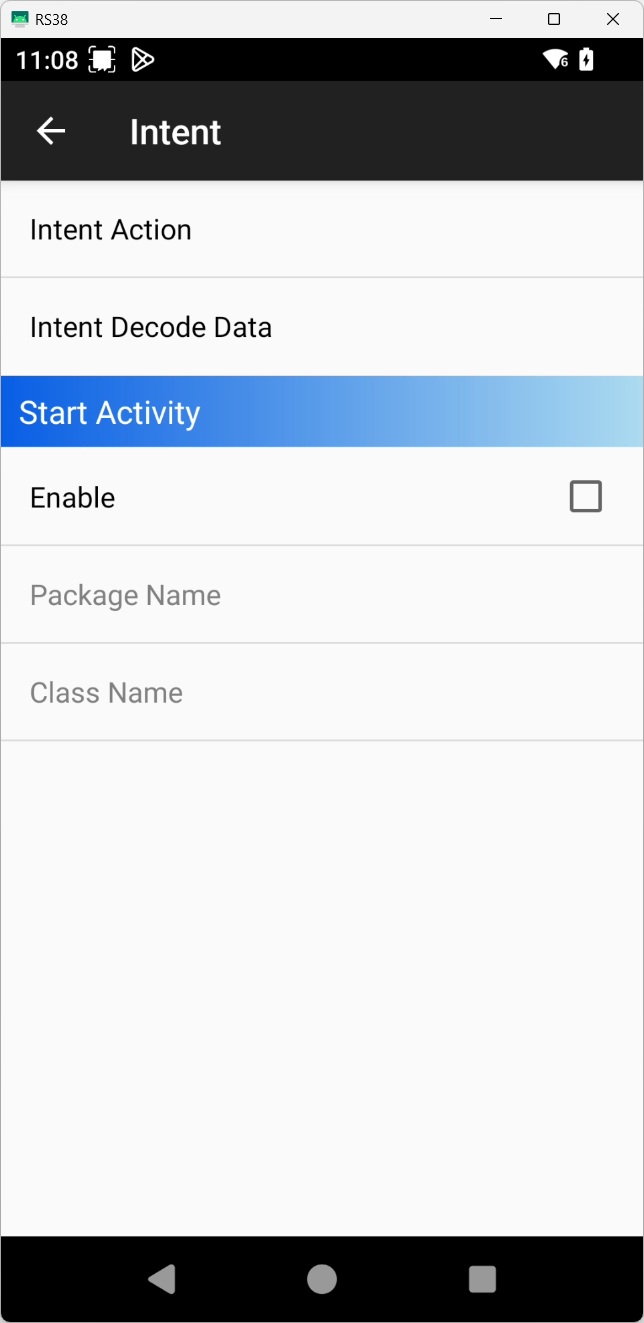
- Set Default Mode to Intent.
- No further configuration needed.

Datalogic
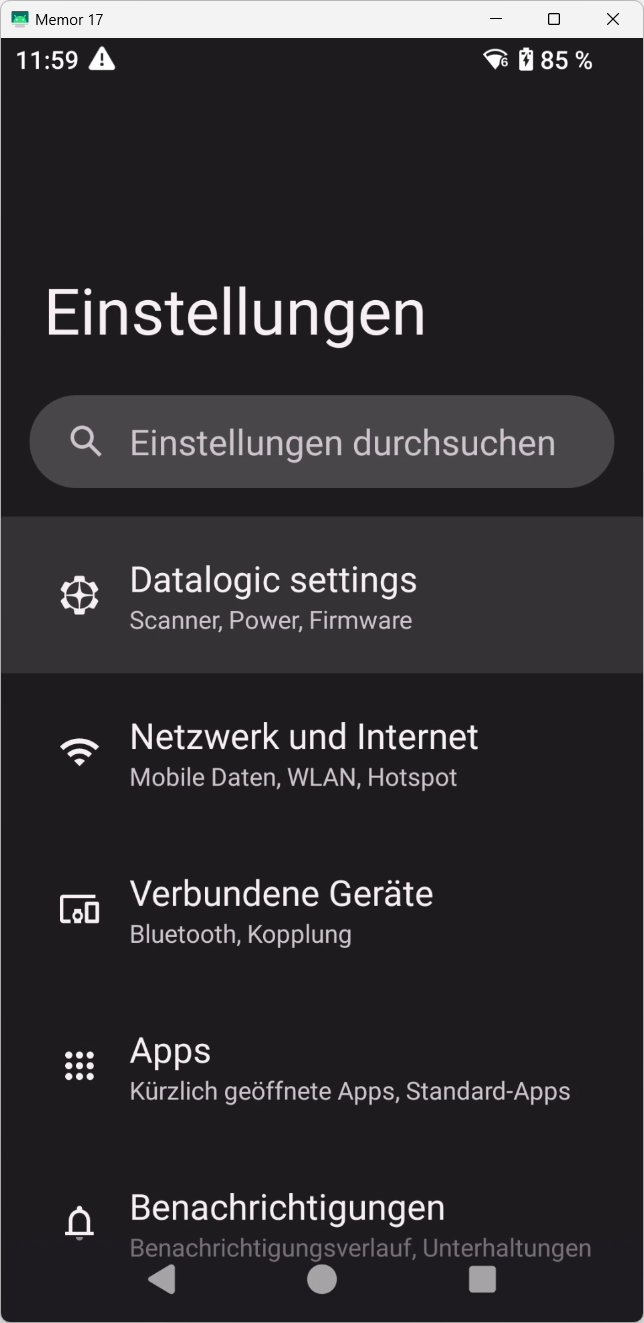
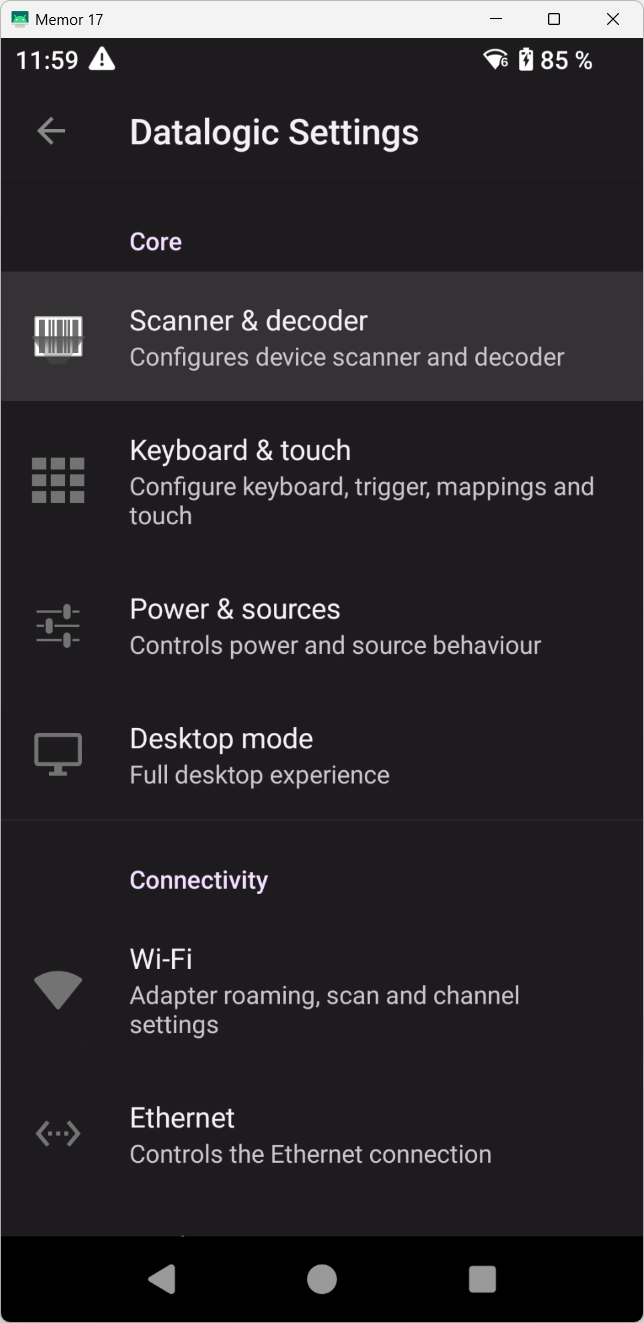
- Open Android Settings.
- Go to Datalogic settings.
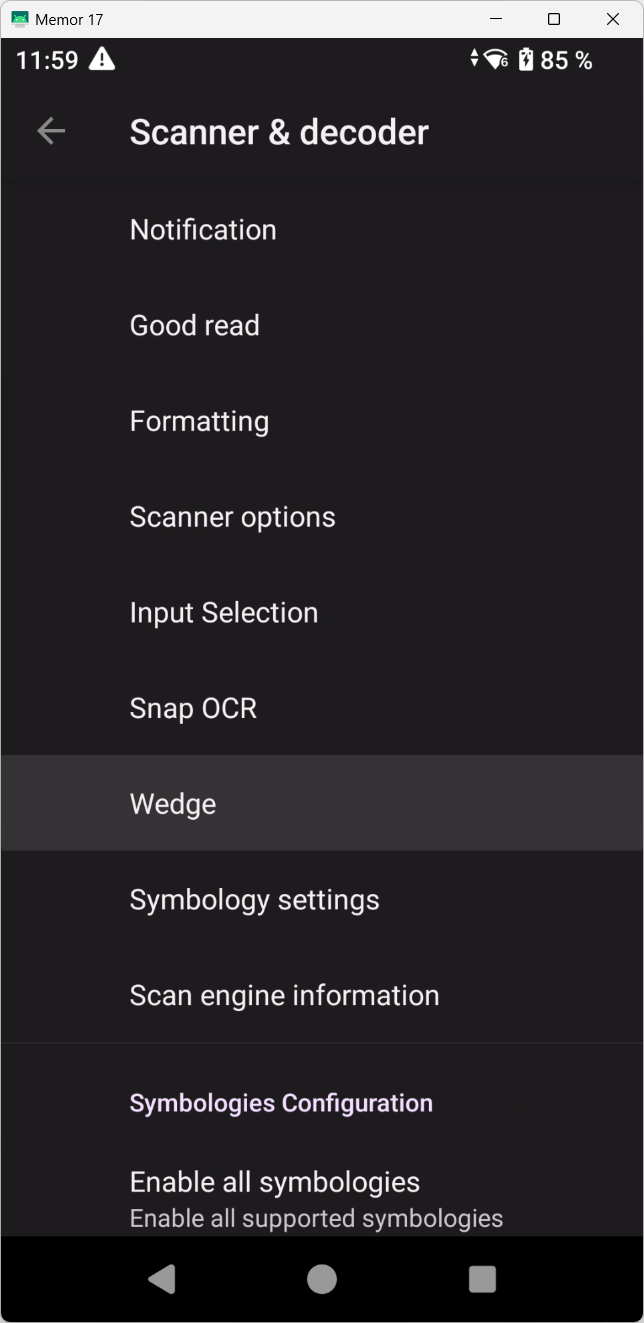
- Select Scanner & decoder.
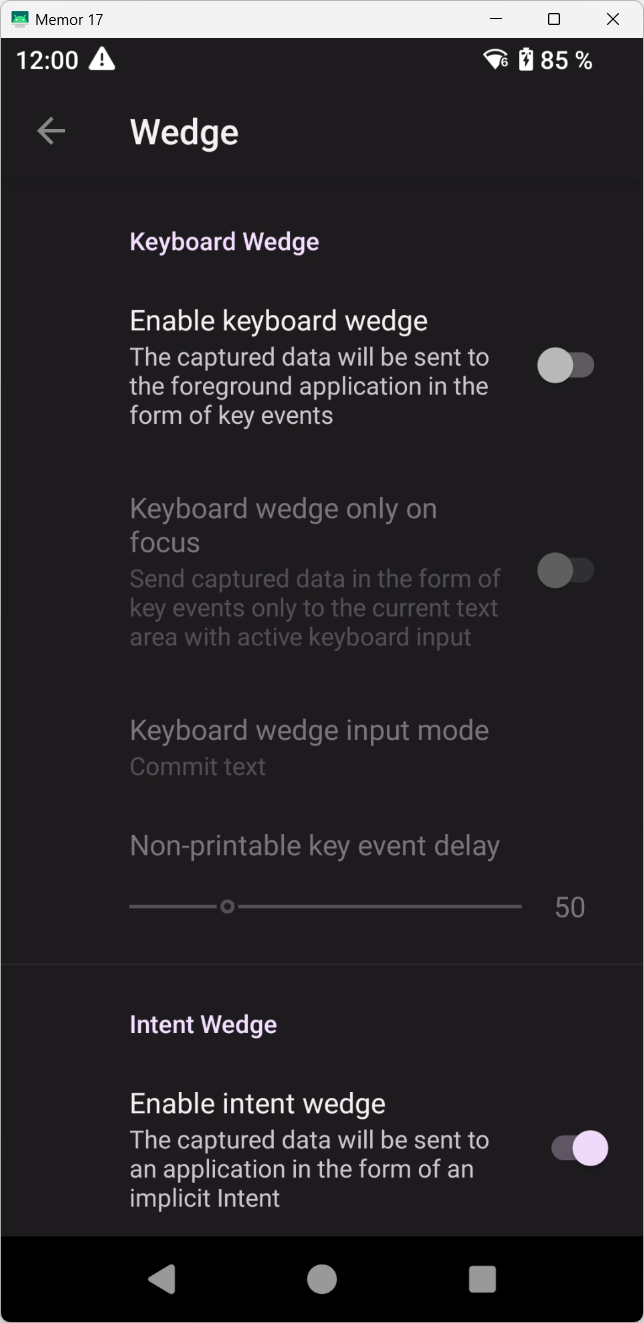
- Open Wedge.
- Set Keyboard Wedge to off.
- Set Intent Wedge to on.
Keyence
Keyence scanners (e.g. the BT and DX series) deliver scan data via Intent Broadcast. The intent action is freely configurable and must be set to keyence.scan.
- Open the scanner settings on the device (Intent Output / Scan Manager).
- Disable the classic keyboard/keystroke output.
- Enable Intent Output.
- Set Delivery to Broadcast.
- Set the Intent Action to
keyence.scan(the default is empty). - Leave the Category empty.
The extra key for the barcode data (com.keyence.autoid.scanmanagersdk.data) is already the default and does not need to be changed.
Do I always need to disable keyboard output (wedge)?
Yes. When using intent-based scanning, always disable classic keyboard output to avoid duplicate inputs and conflicts.
Additional notes
Once intent-based scanning is correctly configured, TheFlex automatically receives the scan data via the specified action intent. If any issues occur, check the settings step by step as described above.