
Certificates with SAP
With login by user certificate, SAP asks for a personal certificate while the connection is being established, checks it against a root certificate and logs in the matching SAP user, without username and password. This works for SAP Fiori as well as for ITS mobile or the Web GUI in the browser.
This article describes the setup on SAP NetWeaver AS ABAP or SAP S/4HANA. The certificates themselves are created beforehand, see Certificates. How the certificates get onto smartcards and how TheFlex uses them at login is described in Login with smartcard.
Prerequisites
- HTTPS is set up in the ICM and the PSE SSL Server Standard exists in STRUST. Login by certificate only works via HTTPS.
- The root certificate ca.crt that was used to sign the personal certificates.
- A personal test certificate (for example johndoe.p12) and its password.
- Authorizations for STRUST, RZ10/RZ11, SICF and CERTRULE.
1. Import the root certificate in STRUST
SAP has to trust the root certificate, otherwise it rejects the personal certificates.
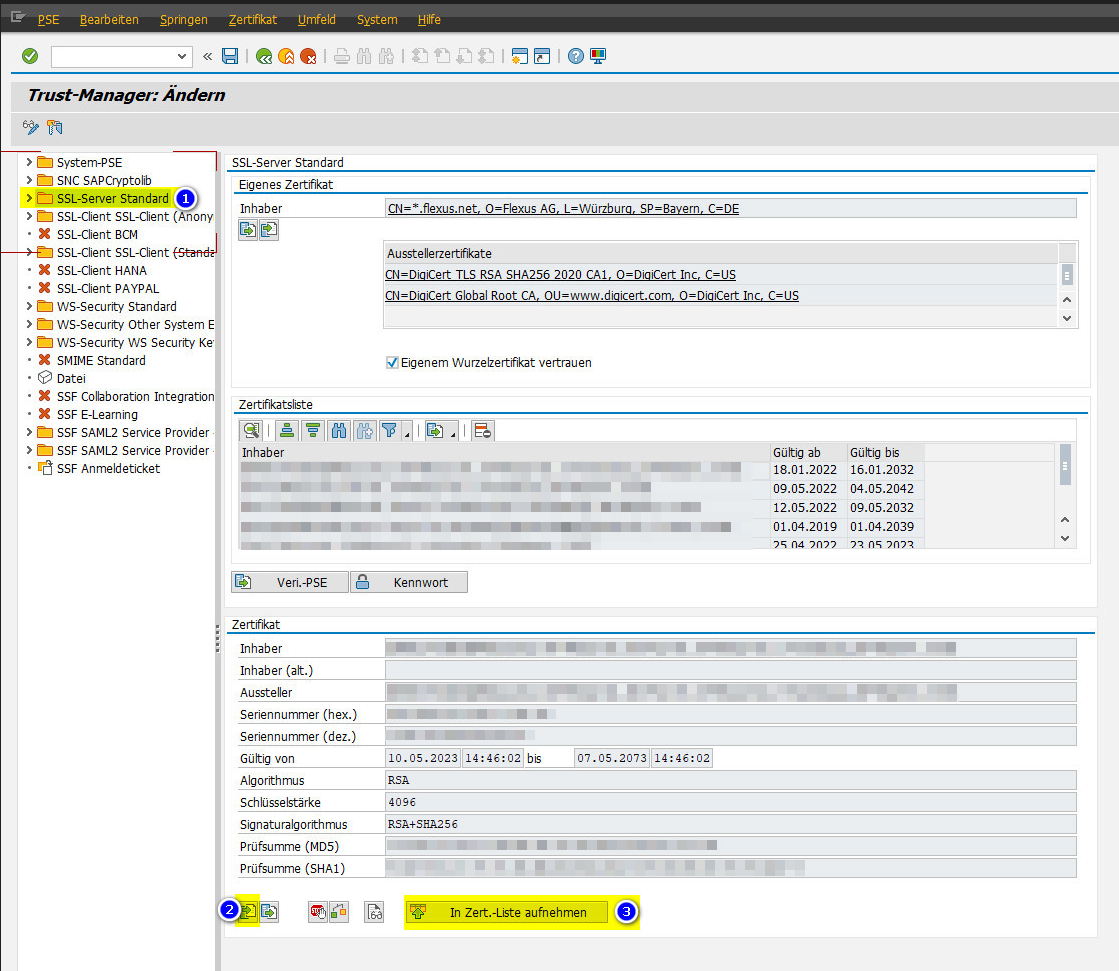
- Start transaction STRUST and switch to change mode.
- Double-click the PSE SSL Server Standard on the left. If there are several entries below it (one per application server), the step applies to each of them.
- At the bottom under Certificate, choose Import certificate and select the file ca.crt.
- Click Add to Certificate List.
- Save.
Why this matters
While the connection is being established, SAP sends the list of root certificates it trusts. Browsers and TheFlex only offer certificates that match this list. If ca.crt is missing from it, the browser does not even ask for a certificate.
If the change does not take effect right away, restart the ICM in transaction SMICM (Administration > ICM > Restart).
2. Request client certificates in the ICM
The profile parameter icm/HTTPS/verify_client controls whether the ICM asks for a certificate while the connection is being established:
| Value | Meaning |
|---|---|
0 | Do not request a certificate - login by certificate is not possible |
1 | Request a certificate, but do not require it (default) |
2 | Require a certificate - no connection without one |
1 is recommended: anyone with a smartcard is logged in with it, everyone else still sees the login screen. Transaction RZ11 shows the current value.
The value can also be set per port with the option VCLIENT in the parameter icm/server_port_<n>, for example PROT=HTTPS,PORT=44300,VCLIENT=1.
3. Check the logon procedure in SICF
The services in transaction SICF have to allow login by certificate. This is the case with the default settings. It needs checking if a service has its own logon procedure:
- Start SICF and open the service, for example
/sap/bc/ui2/flp(Fiori Launchpad),/sap/bc/ui5_ui5,/sap/opu/odataor/sap/bc/gui/sap/its/webgui(Web GUI). - Tab Logon Data: if the procedure is Standard, nothing needs to be done. With Alternative Logon Procedure, SSL Client Certificate has to be in the list.
4. Map certificates to SAP users
SAP has to know which user a certificate belongs to. There are two ways to do this.
Recommended: rule-based with CERTRULE
A rule maps all certificates according to the same pattern, for example by e-mail address. New employees then need no setup in SAP, just a certificate with their e-mail address.
- Set the profile parameter
login/certificate_mapping_rulebasedto1(RZ11, in older releases via RZ10 with a restart). - Start transaction CERTRULE and switch to change mode.
- Upload a sample certificate (the .crt file of a user).
- Create a rule: choose the Subject Alternative Name with the e-mail address as the certificate entry, and E-Mail as the login (matching the e-mail address in SU01). Mapping to user name or alias is also possible.
- Save.
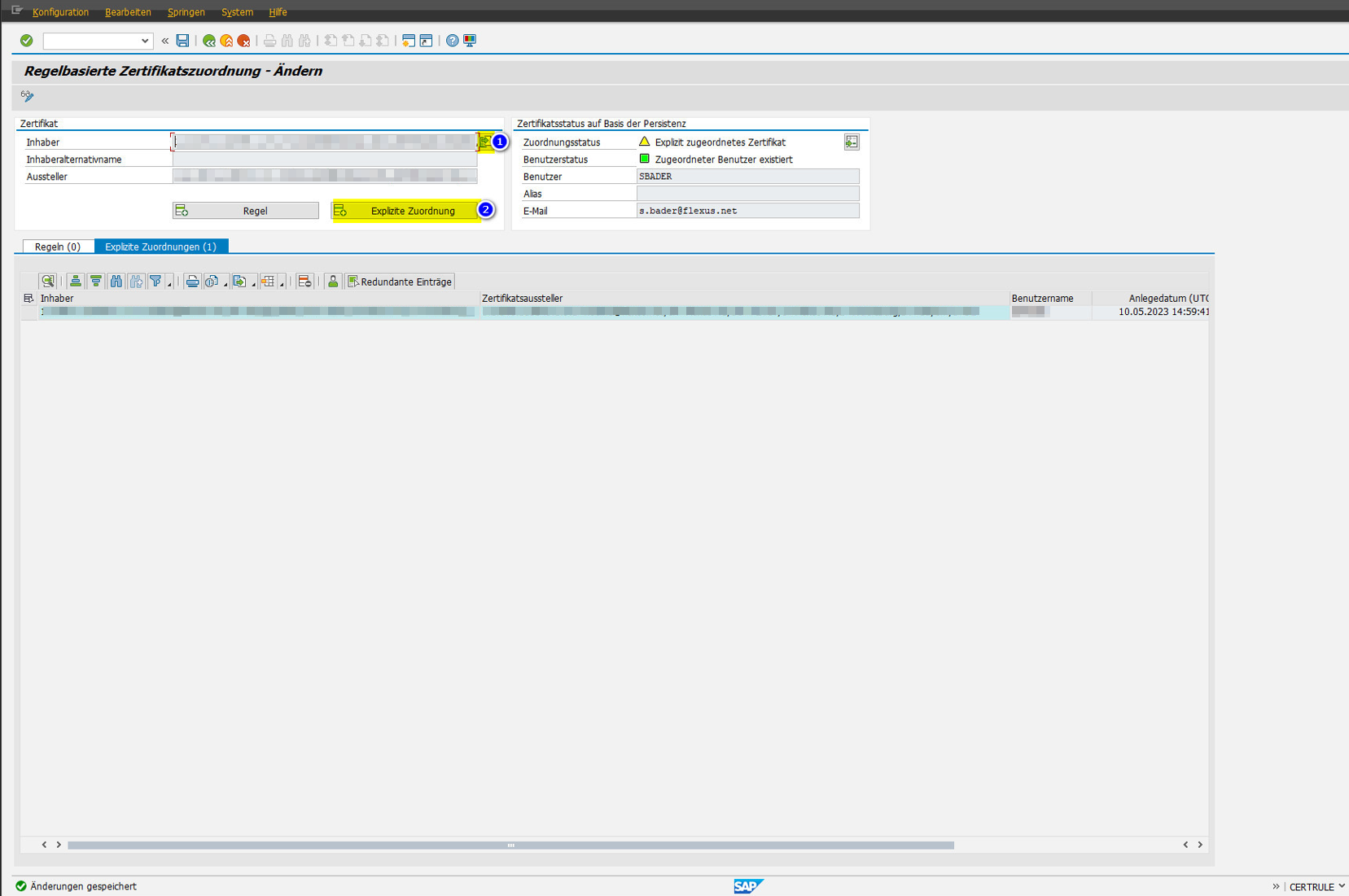
This logs in every user whose certificate contains the same e-mail address that is stored for the user in SU01.
Attention
The e-mail address has to be unique. If it is stored for several SAP users, SAP cannot map the certificate to a user.
For individual cases: explicitly per user
Transaction EXTID_DN maps a certificate to exactly one user: enter the subject DN of the certificate as the external ID (for example CN=johndoe@mycompany.net, OU=IT, O=Flexus AG, ...), select the SAP user and activate the entry. This has to be done for every user individually.
5. Web Dispatcher or reverse proxy
If the HTTPS connection does not end in the SAP system but earlier, in an SAP Web Dispatcher, load balancer or reverse proxy, the certificate does not reach SAP by itself.
- Connection is passed through (no TLS termination): nothing else to do.
- Web Dispatcher terminates TLS: the Web Dispatcher has to request the certificate itself (
icm/HTTPS/verify_clienton the Web Dispatcher) and pass it on to the backend (wdisp/ssl_auth). The backend has to trust the Web Dispatcher as the bearer (icm/HTTPS/trust_client_with_issuerandicm/HTTPS/trust_client_with_subject). The exact values are in the SAP help on forwarding client certificates through the SAP Web Dispatcher. - Third-party proxy or load balancer: also has to request the certificate and pass it on. How this works depends on the product.
6. Test in the browser
Before smartcards come into play, a test on the PC is worthwhile. If it works, the SAP side is done and any later problem lies with the card or the device.
- Double-click the test certificate johndoe.p12 in Windows and install it for the current user.
- Restart the browser and open the launchpad:
https://<host>:<port>/sap/bc/ui2/flp?sap-client=<client>. - The browser asks for a certificate. Select the test certificate.
- The launchpad opens without a login screen, logged in as the mapped user.
Troubleshooting
| Behavior | Cause | Solution |
|---|---|---|
| The browser does not ask for a certificate | icm/HTTPS/verify_client is 0, ca.crt is missing in STRUST or the connection ends before SAP | Check steps 1, 2 and 5 |
| A certificate is selected, but the login screen still appears | No mapping to a user | Check the CERTRULE rule and the e-mail address in SU01, login/certificate_mapping_rulebased = 1 |
| Error message while connecting | Certificate expired or not signed by ca.crt | Check the certificate (double-clicking it in Windows shows validity and certificate chain) |
More detailed information is available in the ICM trace (transaction SMICM, Goto > Trace File > Display, raise the trace level if necessary) and in the system log (transaction SM21).
Once users are logged in, their roles and authorizations apply as usual. Nothing changes in the Fiori apps themselves.