
Login with smartcard
With a smartcard, users log in to TheFlex by holding their card to the device. No user name, no password.
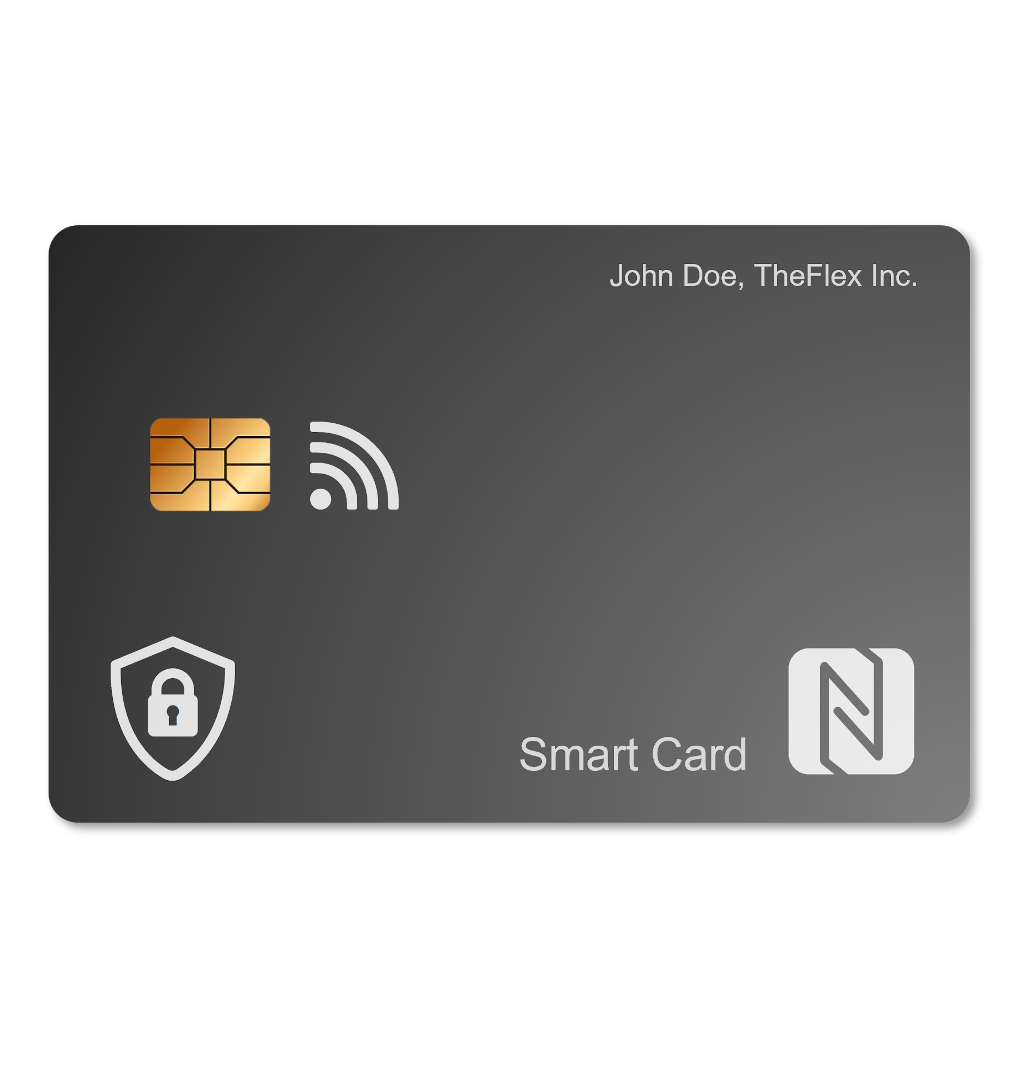
Do your employees share devices?
Smartcards pay off when several employees use the same device and everyone should work under their own name. If each device belongs to one person or one login per device is enough, a certificate on the device is simpler. The comparison is shown in the overview.
At a glance
| In short | Details | |
|---|---|---|
| What is it? | Logging in by holding a card to the device, without user name and password | Smartcards explained |
| Which systems? | SAP (e.g. Fiori, ITS mobile, Web GUI) and Microsoft Entra ID (e.g. Microsoft 365). In principle any system that offers certificate login | SAP, Entra ID |
| Which devices? | Android devices with NFC running TheFlex. Most industrial devices have it | Requirements |
| Which cards? | MIFARE DESFire EV1, EV2 or EV3 with 8 KB of memory. Also available as key fobs or wristbands | Which cards are suitable? |
| What does IT need? | The FlexKey tool (included in the TheFlex license), a card reader on the PC and access to the SAP or Entra ID settings | FlexKey |
| How much effort? | Set it up once. After that, create a certificate and write a card for each new employee. Many devices can be set up at once via MDM | Setup at a glance |
| How secure? | There is no password on the card, the card is encrypted and can only be read on your devices | Protecting the configuration |
| Card lost? | IT blocks it, after which it no longer logs anybody in | Day to day |
| Does the password still work? | Usually yes. Anyone who forgot their card logs in as before | Certificates with SAP |
Benefits and effort
- Very easy for users: hold the card to the device, done
- Very fast login, also at shift change
- No forgotten passwords and no password changes on the devices
- No login data that can be read or copied
- One-time setup of root certificate, system and FlexKey
- Every new user needs a certificate and a written card
- Certificates have to be renewed before they expire
Does this fit your needs, or are you unsure whether your system or your cards are suitable? Get in touch.
The rest of this article is for IT: what is behind it, how to set it up and how to run it day to day. You can pass the link Smartcards explained on to your employees directly.
How it works
Logging in is based on certificates, a standard method that SAP and Microsoft Entra ID (formerly Azure AD) support out of the box. TheFlex simply takes the certificate from the card instead of storing it on the device.
With SAP, the server asks for the certificate automatically (step 2). With Entra ID, the user chooses certificate login on the login page.
So three parts work together:
| Part | What it is | Where it is stored |
|---|---|---|
| Root certificate | Your own issuing authority. You sign the personal certificates with it. | The public part in the SAP system or in Entra ID, the private part kept safe by IT |
| Personal certificate | A user's digital ID | On their smartcard |
| Smartcard configuration | AES Key, Cert PW plus AppID and FileID: the key to all cards | In FlexKey and in TheFlex on every device |
The SAP user's password plays no part. A password change does not affect cards or devices.
Requirements
- Android devices with NFC. Most industrial devices have a reader on the back.
- TheFlex on the devices, version 6.3.0 or newer for encrypted configurations (see Versions).
- FlexKey and a card reader on the PC, see Writing smartcards with FlexKey.
- Smartcards of the MIFARE DESFire type, one per user, see Which cards are suitable?
- A system that supports certificate login and is reachable via HTTPS: SAP NetWeaver or S/4HANA, or Microsoft Entra ID.
Which cards are suitable?
TheFlex and FlexKey work with cards of the MIFARE DESFire family by NXP:
| Card | Suitable | Note |
|---|---|---|
| MIFARE DESFire EV1 | Yes | The method has been tested with it |
| MIFARE DESFire EV2, EV3 | Yes, test first | Backward compatible with EV1. TheFlex only uses commands that all three support. Not yet checked by us with every card, so test a single sample first |
| MIFARE DESFire Light | No | Limited command set, own areas cannot be created |
| MIFARE Classic, MIFARE Ultralight, NTAG | No | Different command set and too little memory. NTAG and Ultralight are suitable for the login via NFC tag |
| ISO/IEC 15693 (e.g. ICODE), LEGIC, HID iCLASS | No | Different radio technology or method |
| 125 kHz cards (e.g. EM4100, HID Prox) | No | Different frequency, Android devices cannot read them |
Technical data of the card:
| Radio interface | ISO/IEC 14443 Type A, parts 1 to 4, 13.56 MHz |
| Commands | MIFARE DESFire EV1, ISO/IEC 7816-4 compatible |
| Protection | AES-128 for the area holding the certificate |
| Memory | 8 KB with 4096-bit keys as in our guide (the .p12 file is about 5.5 KB). With 2048-bit keys (about 2.7 KB), 4 KB is enough |
| Form factor | Any: card according to ISO/IEC 7810 ID-1, key fob, wristband or sticker, as long as it contains a DESFire chip |
| State | The card's master key must be at its factory setting. This is the case for new cards, but usually not for badges of access control systems |
Existing employee badges
If your badge is a DESFire card with free memory, it can also handle the login. Whether the manufacturer of the access control system allows this is best clarified with them. A separate card for logging in is the simpler way.
Setup at a glance
| Step | Where | How often | Guide |
|---|---|---|---|
| 1. Create root certificate | PC (e.g. OpenSSL) | once | Certificates |
| 2. Switch on certificate login in the system | SAP or Entra ID | once | Certificates with SAP, Certificates with Entra ID |
| 3. Create personal certificates | PC (e.g. OpenSSL) | per user | Certificates |
| 4. Test login in the browser on the PC | PC | once | Certificates with SAP |
| 5. Set up FlexKey | PC | once | FlexKey |
| 6. Write cards | PC with card reader | per user | FlexKey |
| 7. Set up TheFlex | Device or MDM | per device or once in the MDM | below |
| 8. Test login on the device | Device | once | below |
Do not skip step 4
If logging in with the certificate works in the browser on the PC, the server side is done. Any later error is then caused by the card or the device, and finding it is much quicker.
Set up TheFlex
TheFlex needs two things: smartcard login must be switched on, and the smartcard configuration from FlexKey must be stored. Without the configuration, TheFlex cannot open the cards.
Creates the configuration, encrypted
Stores it protected on the device and reads all cards with it
Via QR code (individual devices)
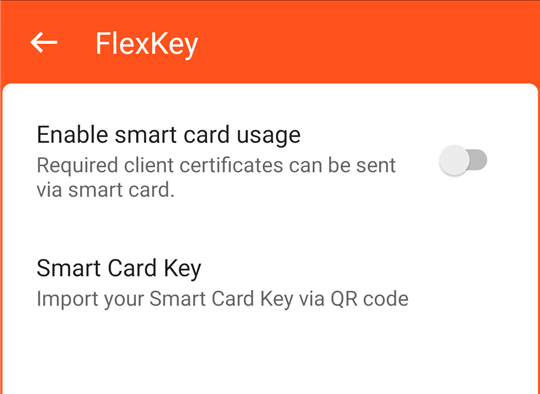
- In TheFlex, open Settings > Login > FlexKey.
- Switch on Enable smart card usage.
- Tap Smart Card Key and scan the QR code that FlexKey shows next to its settings.
- TheFlex confirms that the configuration has been loaded.
Via MDM (many devices)
Use your device management to distribute two entries of the managed app configuration:
| Key | Type | Value |
|---|---|---|
FlxUseSmartcard | bool | true |
NFCConfig | string | the value from FlexKey: button { } (Wert für MDM anzeigen, show value for MDM), then Kopieren (copy) |
How to distribute values via MDM is shown in the example for Microsoft Intune.
The devices apply the values at the latest when TheFlex is next started. The MDM keeps applying them again afterwards. That is intended and causes no problems. If you change the value in the MDM, the new one applies on all devices.
Leave NFCConfig in the MDM as long as smartcards are in use. If you remove the entry, the devices forget the configuration and can no longer read the cards.
Test
- On the device, open SAP or the Entra ID login page in TheFlex.
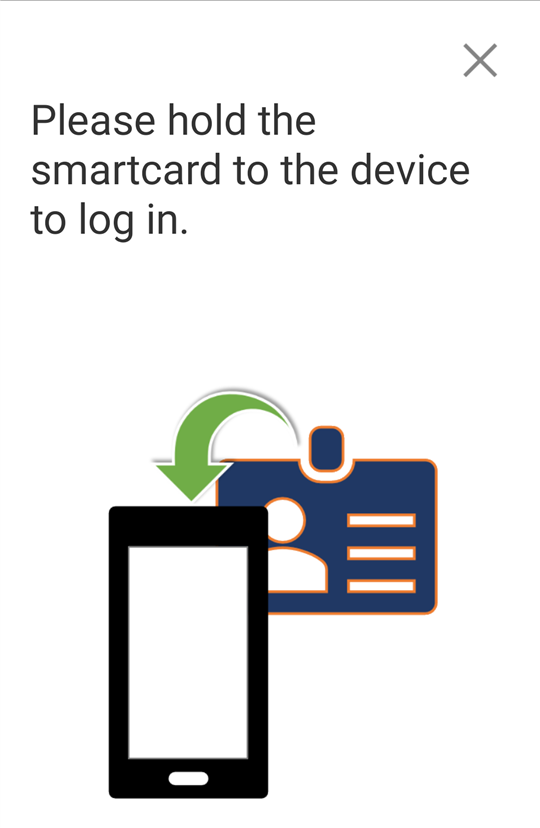
- The smartcard prompt appears. Hold the card to the device.
- The user is logged in without a login screen.
If something does not work, see Troubleshooting.
Start small
Start with a few users and devices. Once everything works there, distribute the configuration to all devices and write the remaining cards.
Day to day
New employee
- Create a personal certificate (Certificates).
- In SAP: with rule-based mapping, it is enough that their e-mail address is stored in SU01. Otherwise create the mapping in EXTID_DN (Certificates with SAP).
- Write the card with FlexKey and hand it over.
Nothing needs to be done on the devices. The configuration applies to all cards.
Card lost or stolen
A finder cannot do much with the card alone: they would also need a device with your smartcard configuration. Still, make sure the card no longer logs anybody in:
- SAP with per-user mapping (EXTID_DN): delete or deactivate the entry for the old certificate.
- SAP with rule-based mapping (CERTRULE): the rule maps every valid certificate with the e-mail address, including the lost one. Lock the user in SU01 until they have a new card. This also blocks password login. If you want to avoid that, map individual users explicitly via EXTID_DN. Short certificate lifetimes, e.g. one year, further limit the risk.
- Microsoft Entra ID: if you have configured a revocation list for your certification authority in Entra ID, revoke the certificate there. Otherwise block the user temporarily and revoke their sessions.
Then create a new certificate and write a new card.
Employee leaves the company
Lock the user as usual. Without an active user, the card does not log anybody in either. You can erase the card itself and write it for another employee.
Certificate expires
Personal certificates have an expiry date (two years in our guide). After that, the server rejects them. From 14 days before expiry, TheFlex shows a notice with the date at login. Create a new certificate in good time and rewrite the same card with it. Nothing needs to be done on the devices.
The root certificate usually only expires after many years. If it is replaced, every user needs a new personal certificate.
New or reset device
Via MDM, the device receives the configuration automatically. Without MDM, scan the QR code again.
The configuration is bound to the individual device. If a device is restored from a backup onto new hardware, TheFlex can no longer read it there and needs it again, via MDM or QR code.
Changing the card key
If a QR code or MDM value falls into the wrong hands, change the AES Key in FlexKey. That takes effort: all cards have to be rewritten and the new configuration distributed to all devices. Until everything is switched over, old cards do not work on devices with the new configuration and vice versa. A new Cert PW additionally means that all .p12 files have to be exported again with the new password.
Protecting the configuration
The smartcard configuration is the key to all cards. That is why it is protected:
- In the QR code and the MDM value it is encrypted. The MDM value starts with
FLXKEY1:. Anyone looking at the MDM console or a printout cannot read AES Key and Cert PW. - On the device, TheFlex stores it in Android's protected key store, bound to this one device.
- When the settings are exported, it is only included if exporting passwords is switched on, and then in encrypted form.
- On the card, the AES Key protects the certificate from being read, and the Cert PW additionally protects the private key inside it.
Still treat it as confidential
Encrypting the QR code and MDM value prevents others from reading them. It does not prevent someone from loading the QR code into their own TheFlex and reading your cards with it. So only give the QR code and MDM value to the people who set up devices, and do not put the QR code on display.
Older TheFlex versions
The encrypted configuration is understood by TheFlex 6.3.0 or newer and by the current FlexKey. QR codes and MDM values in the old, unencrypted format keep working in all versions. Updating TheFlex does not require distributing anything again.
Order when switching over
Older TheFlex versions do not understand the encrypted MDM value, and card login stops working there. So first update all devices to TheFlex 6.3.0 or newer, and only then enter the encrypted value in the MDM. For devices that cannot be updated yet, FlexKey offers Klartext kopieren (ältere TheFlex) (copy plain text) in the same dialog.
Troubleshooting
| Behavior | Cause | Solution |
|---|---|---|
| The login screen appears instead of the smartcard prompt | Smartcard login is off in TheFlex, or the server does not ask for a certificate | Check FlxUseSmartcard or the setting in TheFlex. Then test in the browser on the PC, see Certificates with SAP |
| TheFlex opens the NFC settings | NFC is switched off on the device | Switch on NFC, go back to TheFlex, reload the page |
| The prompt disappears after one minute | No card detected | Hold the card flat against the NFC reader, reload the page |
| After holding the card to the device, the loading indicator keeps spinning | The configuration in TheFlex does not match the card; usually it was never loaded | Load the configuration via QR code or MDM. Check that card and configuration come from the same FlexKey |
| Wrong certificate password - please check the FlexKey configuration. | The Cert PW does not match the certificate's password | Correct it in FlexKey and load the configuration into TheFlex again |
| The certificate on the card could not be read. | Card incomplete or written with a different configuration | Rewrite the card in FlexKey |
| Card is read, but SAP still shows the login screen | Certificate is not mapped to an SAP user | Check the CERTRULE rule and the e-mail address in SU01 |
| Card is read, but the server reports an error | Certificate expired or not signed by your root certificate | Check the certificate on the PC (double-click shows validity and chain), create a new one and rewrite the card |
| Works for one user but not for another | The problem lies with that card or that user | Rewrite the card, check the user's mapping |