
Menu start pages
Menu start pages replace the flat start page list with a folder-based navigation dialog. Users tap through folders to find their app - similar to navigating a file manager. This is especially useful when many URLs are in use and a simple list would become hard to read.
When to use menu start pages
| Situation | Recommendation |
|---|---|
| 1-5 URLs | Classic start pages are sufficient |
| Many URLs, different departments/systems | Menu start pages - organise by folder |
| Devices used by different user groups | Menu start pages - one folder per group |
Activating menu start pages
- Open Settings → Start pages
- Scroll down to the Menu start pages section
- Toggle Activate menu start pages on
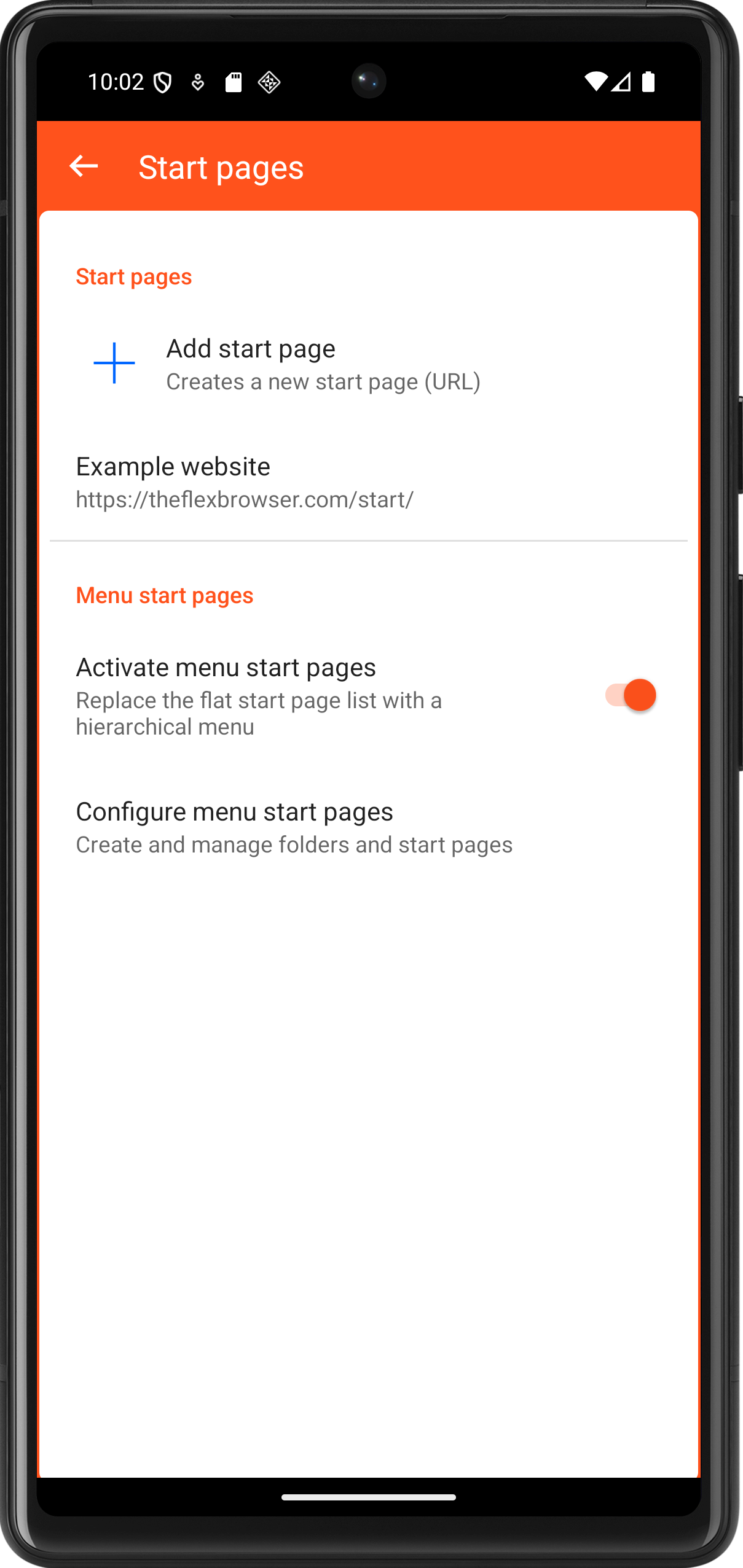
Once activated, the flat popup list in the toolbar is replaced by the menu navigation dialog.
Note
Classic start pages and menu start pages share the same password protection setting. If an admin password is configured, users must enter it before switching to a different start page.
Configuring the menu
Tap Configure menu start pages to open the management view. Here you can create folders and start pages, nest them, and change their order.
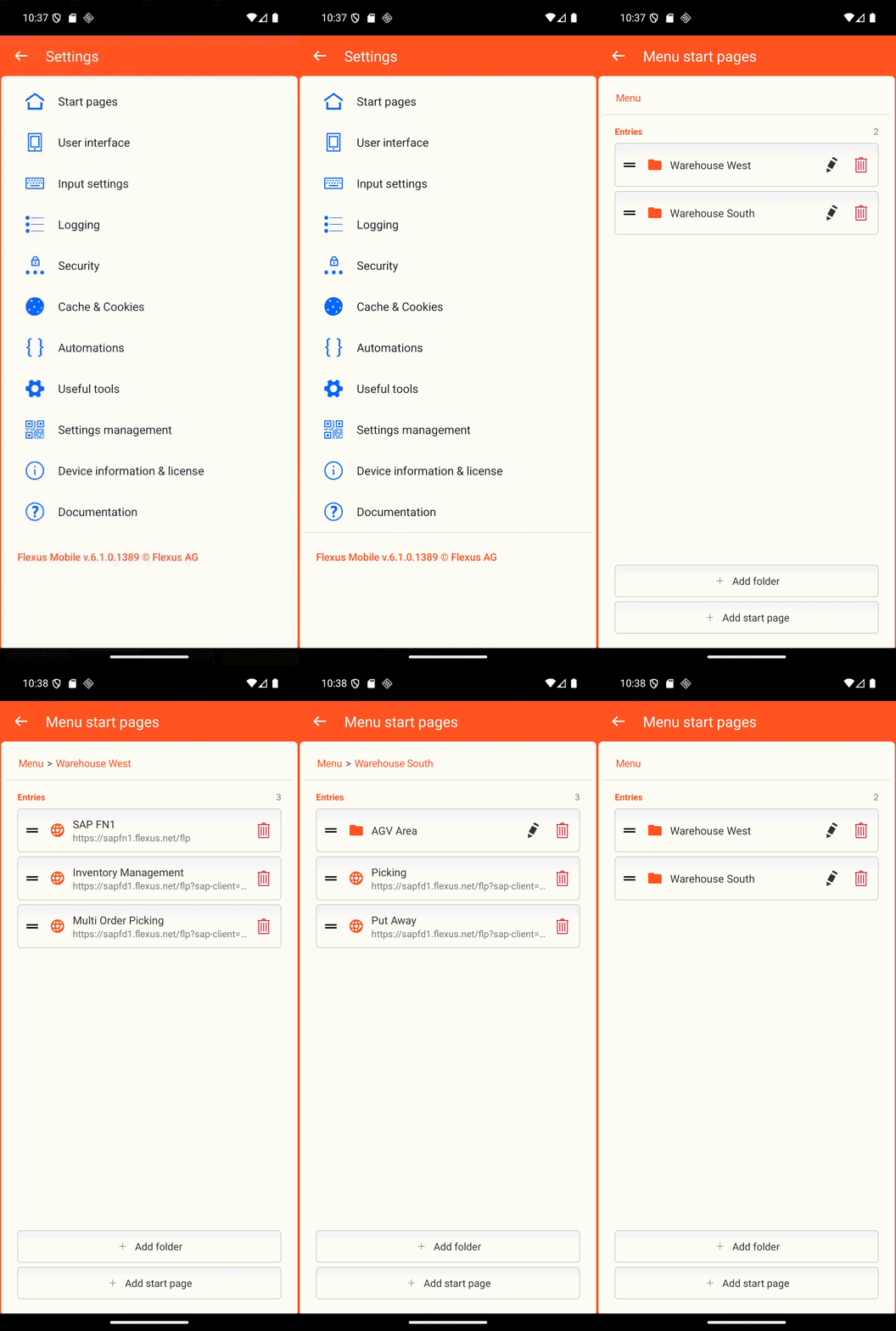
Adding a folder
Tap Add folder, enter a name, and save. Folders can be placed inside other folders for as many levels as needed.
Adding a start page
Navigate into the desired folder first, then tap Add start page. Fill in:
- Name - The label shown in the menu (e.g. "Picking - Hall 3")
- URL - The address of the website or app. Tap the QR code button to scan instead of typing.
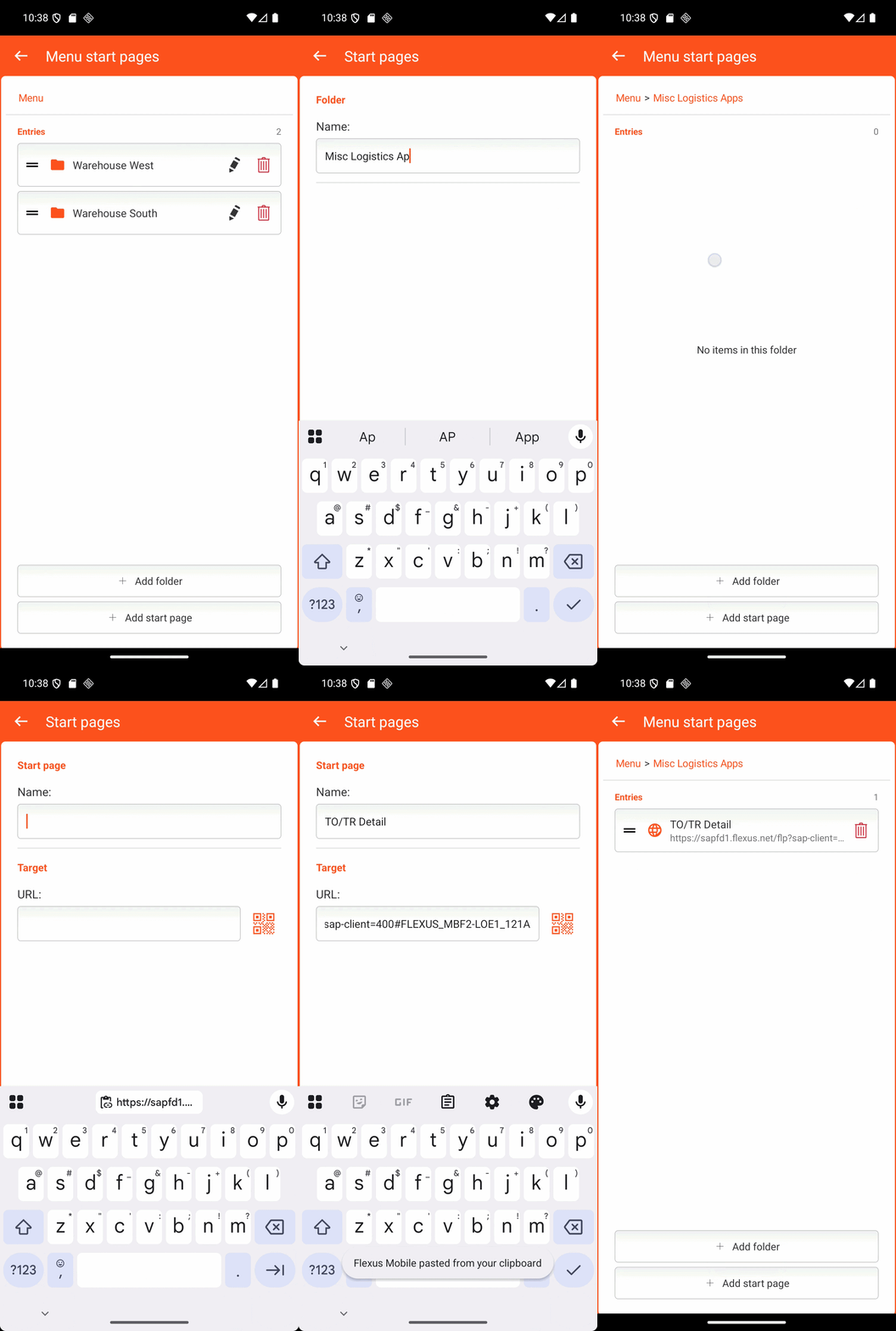
Recommendation
Scan the URL using the QR code button instead of typing it. Open the page in Chrome on a PC, click Share page → Create QR code in the address bar, and scan the code with TheFlex.
Changing the order
Press and hold an entry and drag it to the desired position. Items can be reordered freely within any folder.
Deleting entries
Each entry has a red delete button on the right. Deleting a folder also deletes everything inside it.
Attention
Deleting a folder removes all start pages and subfolders inside it. This cannot be undone - a confirmation prompt appears before deletion.
How the menu works for users
When the user taps the menu button in the TheFlex toolbar, the full-screen navigation dialog opens. They can:
- Tap a folder to see its contents
- Tap the back button (or the hardware back key) to go up one level
- Tap a start page to open it immediately
The currently open URL is remembered. When TheFlex restarts, the same start page is loaded again automatically.
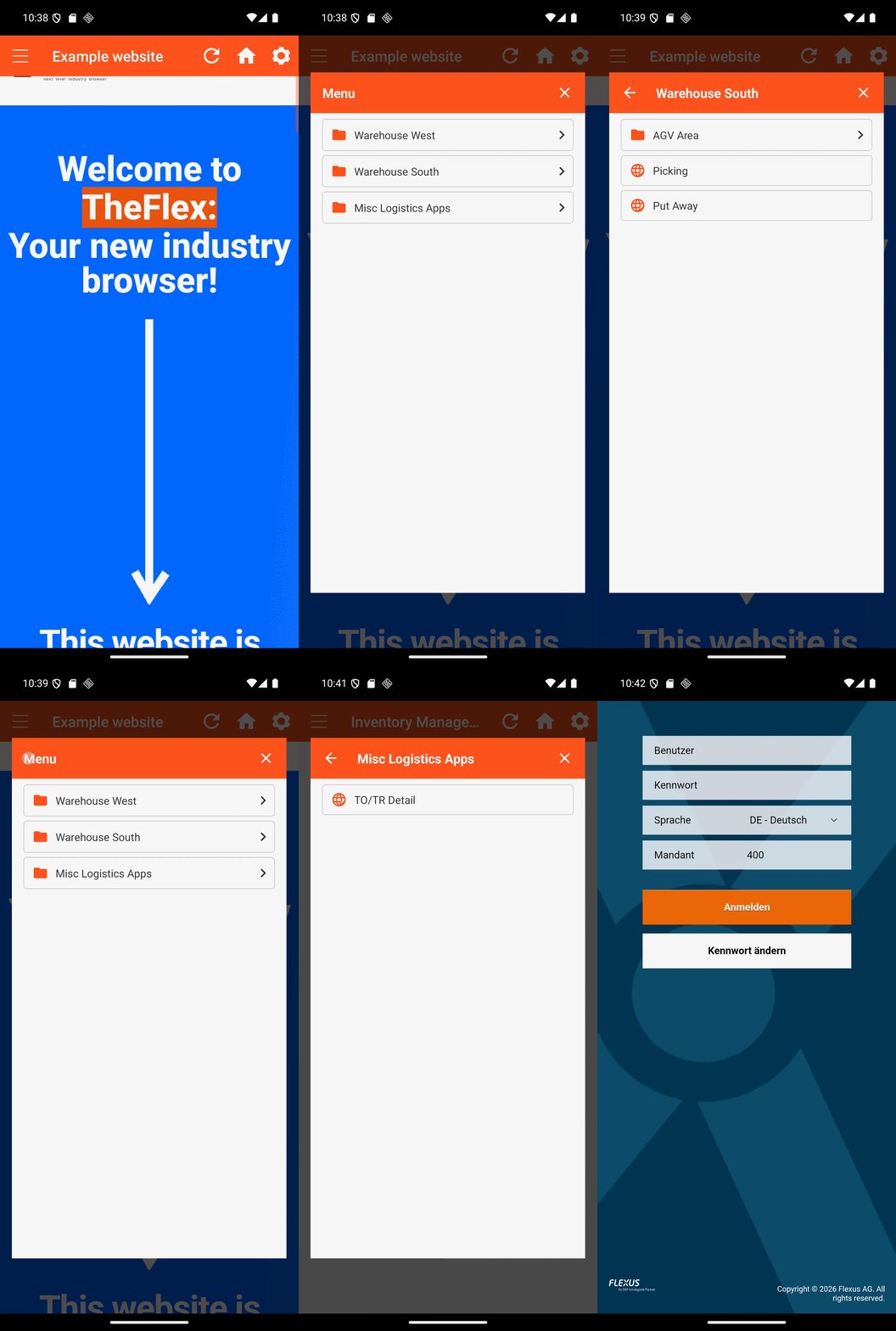
Distributing via MDM
The entire menu structure (folders and start pages) can be pushed centrally via MDM so that no manual setup is required on the devices. See: