
Login with NFC card
With NFC login, users hold their card to the device and TheFlex enters user and password on the login page and logs in. Nothing has to be typed and no script is needed: write the cards, switch the feature on, done.
This is especially useful where several employees share a device and therefore log in often, for example at shift change or with devices from a pool.
NFC login is available from TheFlex 6.3.0.
How it works
- The user opens a page with a login form. TheFlex detects the form and shows the hint Log in with NFC card: hold the card to the device at the bottom.
- They hold their NFC login card to the device.
- TheFlex decrypts the card, enters user and password and presses the login button. If there is no button, TheFlex sends Enter from the password field.
The hint can be tapped away, the card still works. User and password never appear in any log.
When does NFC login fit?
The card holds user and password, encrypted. That has consequences:
- Whoever has the card can log in, on any device that can read the card. A lost card is like a lost note with the password on it: lock the user or change the password.
- When the password changes, the card has to be written again. With passwords that expire regularly, that is extra work.
If that does not suit you, Login with smartcard is the better way. There the card holds a certificate instead of a password, which cannot be read out. The card stays valid when passwords change.
| NFC login | Smartcard | |
|---|---|---|
| On the card | User and password, encrypted | Certificate, cannot be read out |
| Password changes | Write the card again | Nothing to do |
| Requirement in the system | Normal login with user and password | Certificate login must be set up |
| Cards | Inexpensive NFC tags, e.g. NTAG | Smartcards |
| Setup | Minutes | More effort, once per system |
Which login pages are detected?
TheFlex looks for exactly one visible password field with a visible user field before it. The SAP login page (including the one of the Fiori launchpad) is detected directly. The form is searched for every second, so it is also found when a page only shows it after loading.
Two-step login, e.g. Microsoft
Some logins ask for the user first and for the password on a second page, as Microsoft does. Here, too, holding the card once is enough:
- On the user page, TheFlex enters the user and presses Next.
- When the password page appears, TheFlex enters the password and logs in, without the card having to be held again.
So that the hint does not appear on every page with a single input field (usually that is a search), the user page only counts if the field clearly identifies itself as a user field. That is the case at Microsoft and on all pages that mark the field as a username (autocomplete="username").
Between the two steps, TheFlex keeps the password in memory for at most 20 seconds, only for this tab and the same address. If the password page does not appear, for example because the user was rejected, it is discarded.
If the user only holds the card on the password page, for example because Microsoft already knows the account, TheFlex only enters the password if the page shows the account on the card. That way the password does not end up with a different account.
What TheFlex deliberately leaves alone:
- Multi-factor authentication (MFA), such as confirming in the Authenticator app or an SMS code. That stays with the user. If your tenant requires MFA on every login, Login with smartcard is the right way: the certificate on the card replaces MFA.
- The question "Stay signed in?". Whether the device stays signed in is up to the user or your IT.
- Redirects to your own login page, such as ADFS: if it asks for user and password together, it is detected as a normal login page. Hold the card there once more.
Not detected
- Pages with several password fields, such as "change password" with old and new password. A card login deliberately stays out there.
- Pages that read NFC themselves. NFC login then stays out of the way and shows no hint, so the two do not get in each other's way.
Setup
1. Switch it on
Under Settings > Login > NFC login, switch on Log in with NFC card. It is off by default. NFC must be switched on in the Android settings.
2. Set a key (optional)
Cards are written encrypted. Without further settings, TheFlex uses a built-in key. It is the same in every TheFlex, so a card works on every device with TheFlex.
If only your own devices should be able to read your cards, set your own key under Own key, the same one on all devices. The easiest way is to distribute it via MDM (see below).
Changing the key means writing the cards again
A card can only be read with the key it was written with. If you introduce or change the key later, all cards have to be written again. So set the key before you hand out cards.
3. Write cards
- Open Settings > Login > NFC login > Write NFC login card.
- Enter User and Password and tap Write to card.
- Hold the card to the device until Card written for ... appears.
Suitable cards are writable NFC tags in NDEF format, e.g. NTAG cards or key fobs. Whatever was on the card before is overwritten. The writing screen cannot be captured as a screenshot, so the password does not end up in images.
4. Test
Open a login page, look for the hint at the bottom and hold the card to the device. If the hint does not appear, see Troubleshooting.
Settings in TheFlex
Under Settings > Login > NFC login:
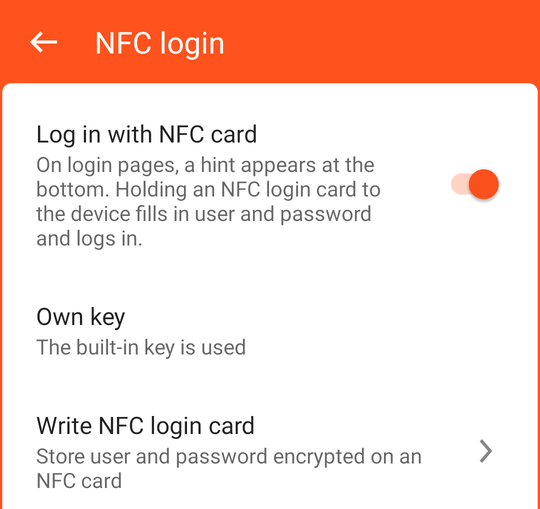
| Setting | Meaning |
|---|---|
| Log in with NFC card | Switch NFC login on or off. Off by default |
| Own key | Key used to write and read cards. Leave empty for the built-in key. The key is never shown, only whether one is set |
| Write NFC login card | Write user and password onto a card |
When exporting the settings, your own key is treated like a password: it is only included when Export passwords? is switched on.
Set up via MDM
| Key | Type | Default | Value |
|---|---|---|---|
FlxNfcLoginEnabled | bool | false | Switch NFC login on |
FlxNfcLoginPassword | string | empty | Own key. Empty for the built-in key |
How the values get onto the device is shown in Rollout via MDM.
Troubleshooting
| Message or behavior | Cause | Solution |
|---|---|---|
| No hint appears on the login page | NFC login is off, or the page is not detected as a login page | Switch on Log in with NFC card. Otherwise see Which login pages are detected? |
| This card belongs to a different account than the one on this page. | The card was held on a password page that shows a different account | Log in with the right account, or go back to the user page and hold the card there |
| The user is entered, then nothing happens | After the user, the page does not ask for a password but for something else, e.g. a confirmation in the Authenticator app | Complete the confirmation by hand. With MFA on every login, Login with smartcard is the better choice |
| NFC is switched off. Switch it on in the Android settings to log in with a card. | NFC is off in Android | Switch NFC on in the Android settings |
| This card does not match this device (different key). | The card was written with a different key | Set the same Own key on all devices or write the card again |
| This is not an NFC login card. | The card holds something else or is empty | Write the card with Write NFC login card |
| Login form not found. Please try again. | The page changed between the hint and holding the card | Wait until the login page has finished loading and hold the card again |
| The card fills in the form, but login fails | User or password on the card are no longer correct, e.g. after a password change | Write the card again |
| The card is already lying on the device and nothing happens | Android often does not pick up a card again that was already there when the page opened | Lift the card briefly and hold it again |
| This card is write-protected. / Not enough space on this card. / This type of card cannot be written. | Unsuitable card | Use another writable NFC card, e.g. NTAG |
| Writing failed. Please hold the card still and try again. | The card was moved while writing | Hold the card still and write again |
Custom flows with Custom Scripts
If you need more than user and password, such as additional fields or your own dialogs, you can also read NFC cards yourself with Custom Scripts. The FAQ NFC and Custom Scripts shows an example. In that case, though, the credentials are usually stored in plain text on the card, and the script has to be maintained for each login page. For the normal login with user and password, the built-in NFC login is the simpler and safer way.