Configuration of TheFlex with Intune
An MDM (Mobile Device Management System) is a software solution that helps businesses manage and secure mobile devices such as smartphones, tablets, and laptops. MDM systems allow organizations to remotely monitor, configure, and control devices, regardless of location or the network they are connected to. MDM systems are particularly useful for companies with a large number of employees accessing corporate resources through mobile devices.
The following article describes the procedure for configuring the Android version of TheFlex with Microsoft Intune.
Create an app-configuration policy
Visit the Microsoft Endpoint Manager website and log in with your credentials. Navigate to Apps and select App configuration policies.
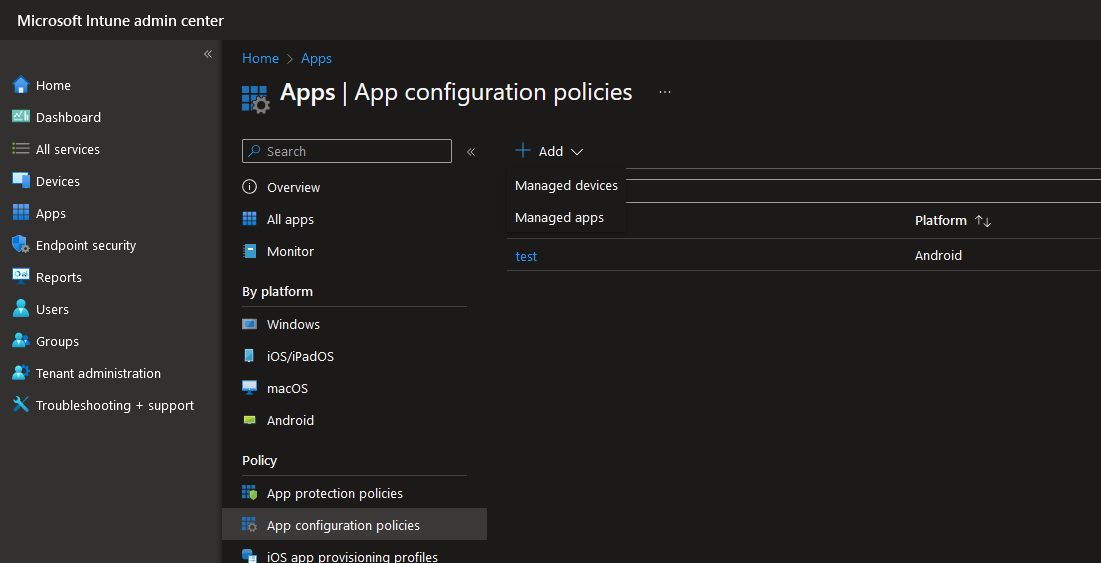
Click on Create new policy and select Managed Devices.
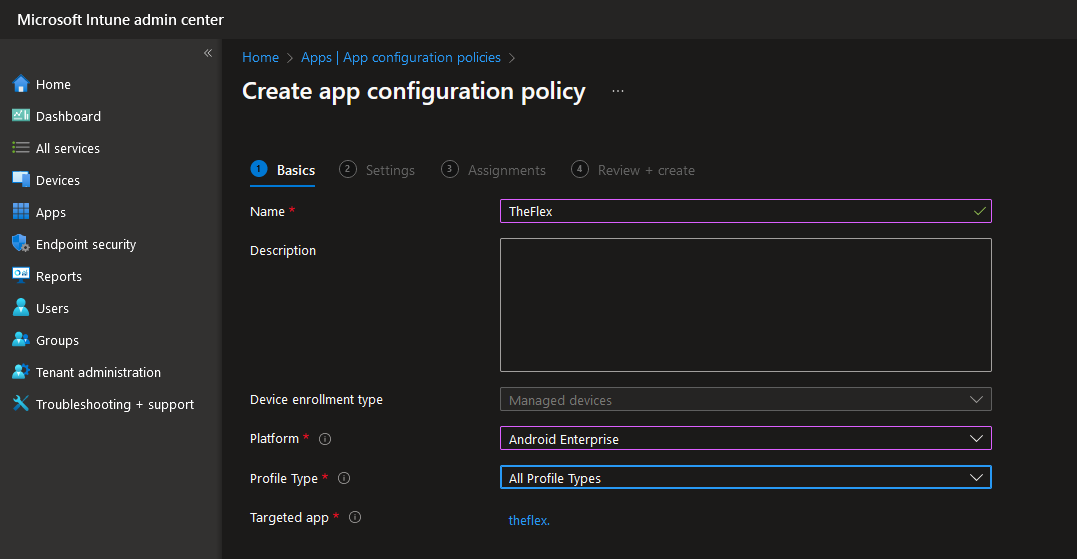
There you can select TheFlex as the name, Android Enterprise as the target platform, a corresponding profile type and finally the app TheFlex.
Configuration of the settings
Optionally, you can directly activate the required authorizations for TheFlex. The following authorizations are required for TheFlex:
- WiFi
- NFC
- Bluetooth
- Camera
- GPS
- Flashlight
- Vibrate
- Audio
- Read Storage
- Write Storage
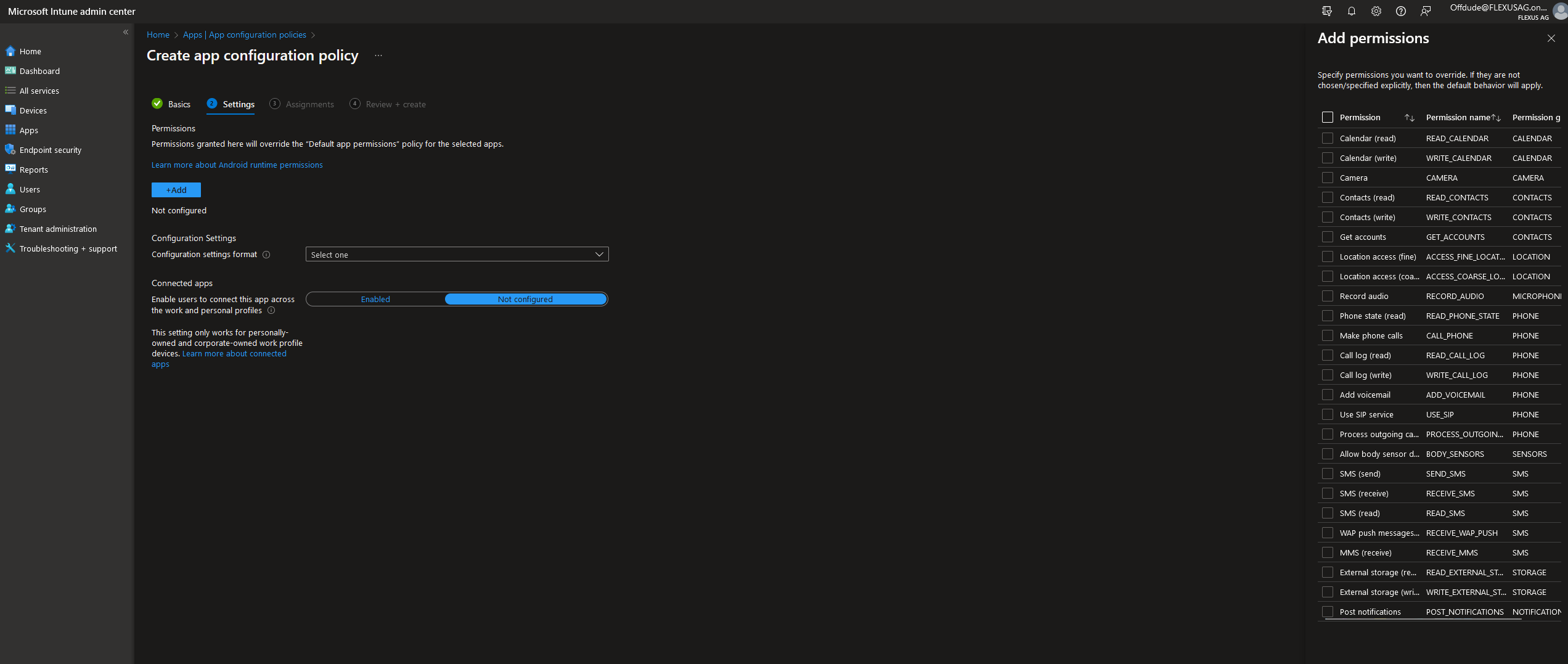
The next step is to configure the TheFlex-specific settings. As the most important and mandatory setting is the start pages, this cannot be done via the Intunes interface. The reason for this is that several start pages can be configured and this function is not supported by Intunes.
For this reason, the settings must be entered as JSON data:
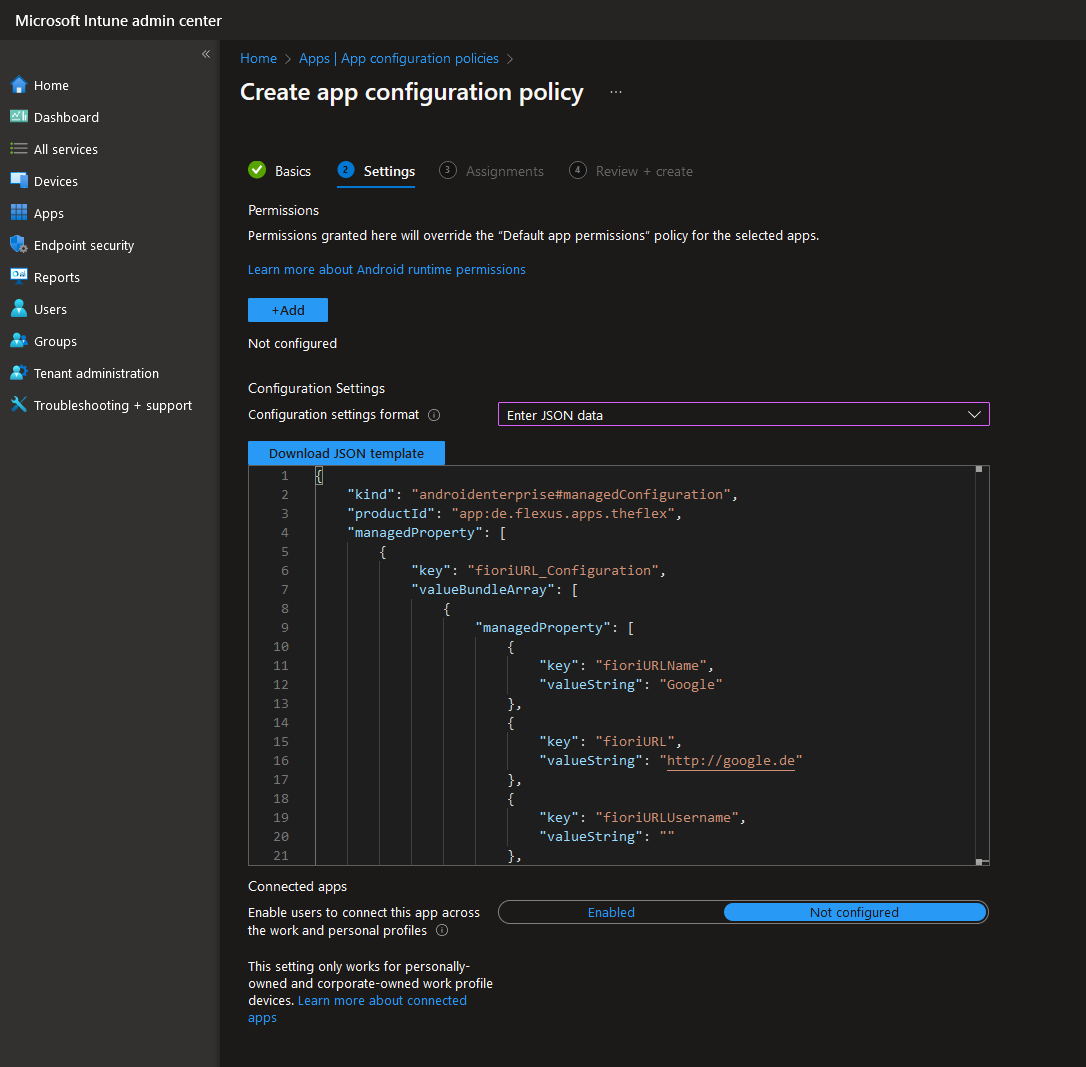
Intune automatically generates sample data. The recommendation is to copy this into another program such as Notepadd++ and edit it there.
Configuration of normal settings
Most settings are predefined as either "true" or a number. These can be adjusted to the appropriate value as required or left at the default value.
Important: Intune automatically writes the value STRING_VALUE for all text settings. This must at least be replaced by an empty string "". However, it is recommended to replace this STRING_VALUE with a valid setting:
| Setting | Possible values (always enter in "") |
|---|---|
| Additional displays | "none", "PROGLOVE_MARK_DISPLAY_SDK", "NIMMSTA_HS50_SDK" |
| Keyboard behavior | "default", "keine_Tastatur", "Tastatur_beim_tippen" |
| Language | "de_DE", "en_EN" |
| Logging | "ERROR", "WARN", "INFO", "DEBUG" |
Configuration of the license
The license code can be entered as valueString under the flx_license key. The license code must also be placed in quotation marks here, otherwise it will not be recognized as valid by Intune.
Configuration of the start pages
At least one start page must be configured, otherwise TheFlex will reject the configuration as invalid and reset it. To do this, at least one managedProperty must be added or configured in the fioriURL_Configuration section:
- fioriURLName: Name of the start page (mandatory, must not be empty)
- fioriURL: URL of the start page (mandatory, must not be empty)
- fioriURLUsername: Optional SAP user
- fioriURLPassword: Optional SAP password
At the end of this article is a valid configuration as JSON. This can be copied into Microsoft Intune. It is recommended to insert a valid license code directly.
In some cases, it may be useful to transfer all settings to the devices via Intune except for the username and password.
This may be necessary if all settings are to be centrally managed, but users still need to be able to save their personal login credentials for certain startpages.
To enable this with Intune, a "/" (a single slash) must be entered as fioriURLUsername and fioriURLPassword in Intune. If the device receives a "/", it will not overwrite the local setting.
Selection of user groups
The next step is to configure which device or user groups this configuration policy should apply to.
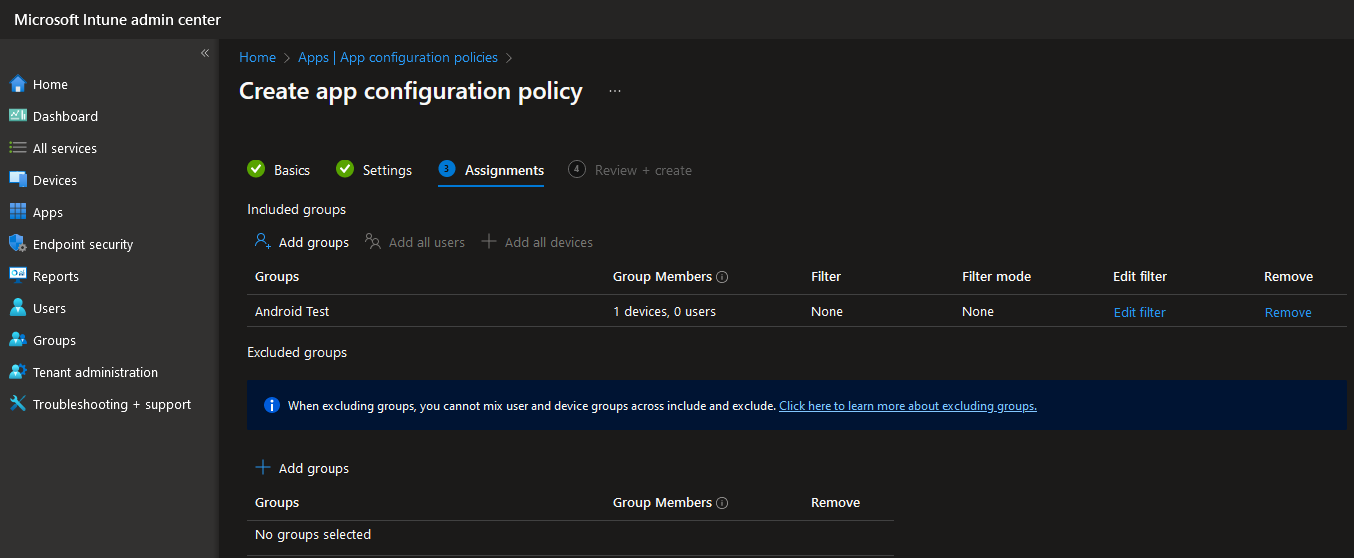
The app and Intune settings are then automatically distributed to all selected devices.
If TheFlex was already installed and configured, for example for local testing, the settings must be reseted. This can be done either in the TheFlex or the general Android settings.
Example JSON for an Intunes configuration
{
  "kind": "androidenterprise#managedConfiguration",
  "productId": "app:de.flexus.apps.theflex",
  "managedProperty": [
    {
      "key": "fioriURL_Configuration",
      "valueBundleArray": [
        {
          "managedProperty": [
            {
              "key": "fioriURLName",
              "valueString": "Google"
            },
            {
              "key": "fioriURL",
              "valueString": "http://google.de"
            },
            {
              "key": "fioriURLUsername",
              "valueString": ""
            },
            {
              "key": "fioriURLPassword",
              "valueString": ""
            }
          ]
        },
        {
          "managedProperty": [
            {
              "key": "fioriURLName",
              "valueString": "Flexus"
            },
            {
              "key": "fioriURL",
              "valueString": "http://flexus.de"
            },
            {
              "key": "fioriURLUsername",
              "valueString": ""
            },
            {
              "key": "fioriURLPassword",
              "valueString": ""
            }
          ]
        }
      ]
    },
    {
      "key": "customScript_Configuration",
      "valueBundleArray": [
        {
          "managedProperty": [
            {
              "key": "customScriptDescription",
              "valueString": "My Custom Script"
            },
            {
              "key": "customScriptName",
              "valueString": "http*"
            },
            {
              "key": "customScriptCode",
              "valueString": "alert('Willkommen bei TheFlex!');"
            },
            {
              "key": "customScriptActive",
              "valueBool": true
            }
          ]
        }
      ]
    },
    {
      "key": "customCSSSet_Configuration",
      "valueBundleArray": [
        {
          "managedProperty": [
            {
              "key": "customCSSDescription",
              "valueString": "My Custom Script"
            },
            {
              "key": "customCSSName",
              "valueString": "http*"
            },
            {
              "key": "customCSSCode",
              "valueString": "body {background-color: #2196f3;}"
            },
            {
              "key": "customScriptActive",
              "valueBool": true
            }
          ]
        }
      ]
    },
    {
      "key": "customKeyboardSet_Configuration",
      "valueBundleArray": [
        {
          "managedProperty": [
            {
              "key": "inputType",
              "valueString": "default"
            },
            {
              "key": "cKeyboard",
              "valueString": "{   'rows': [     {       'buttons': [         { 'text': 'F2', 'function': 'F2', 'color': '#3366ff', 'weight': 1 },         { 'text': 'F3', 'function': 'F3', 'color': '#ff6633', 'weight': 1 },         { 'text': 'F5', 'function': 'F5', 'color': '#33cc33', 'weight': 1 },         { 'text': 'F8', 'function': 'F8', 'color': '#ffff33', 'weight': 1 }       ]     },     {       'buttons': [         { 'text': 'Space', 'function': ' ', 'color': '#d3d3d3', 'weight': 1 },         { 'text': 'TAB', 'function': 'TAB', 'color': '#d3d3d3', 'weight': 1 },         { 'text': 'ENTER', 'function': 'ENTER', 'color': '#ffff33', 'weight': 2 },         { 'text': 'Delete', 'function': 'DELETE', 'color': '#ff6633', 'weight': 1 }       ]     }   ] }"
            },
            {
              "key": "customParameter",
              "valueString": ""
            }
          ]
        }
      ]
    },
    {
      "key": "adminPassword",
      "valueString": ""
    },
    {
      "key": "requirePasswordLaunchpad",
      "valueBool": false
    },
    {
      "key": "FLXShowStatusBar",
      "valueBool": true
    },
    {
      "key": "FLXShowNavigationBar",
      "valueBool": true
    },
    {
      "key": "FLXSoftInputModeResize",
      "valueBool": true
    },
    {
      "key": "FlxToolbarOverlap",
      "valueBool": true
    },
    {
      "key": "flxKeyboardPreferences",
      "valueString": ""
    },
    {
      "key": "FlxShowCloseButton",
      "valueBool": false
    },
    {
      "key": "FlxUseSmartcard",
      "valueBool": false
    },
    {
      "key": "ZoomAmount",
      "valueInteger": 100
    },
    {
      "key": "flxSelectedLanguage",
      "valueString": ""
    },
    {
      "key": "LogLevel",
      "valueString": "ERROR"
    },
    {
      "key": "flxPairedDevice",
      "valueString": ""
    },
    {
      "key": "flx_license",
      "valueString": "INSERT YOUR LICENSE KEY HERE"
    },
    {
      "key": "ClearSessions",
      "valueBool": true
    },
    {
      "key": "ClearCacheOnExit",
      "valueBool": true
    },
    {
      "key": "ClearCookieOnSwitchingLaunchpad",
      "valueBool": true
    },
    {
      "key": "ClearCacheOnSwitchingLaunchpad",
      "valueBool": true
    },
    {
      "key": "SslUntrustIgnore",
      "valueBool": false
    },
    {
      "key": "FlxKeepScreenOn",
      "valueBool": false
    },
    {
      "key": "FlxConnectionStatus",
      "valueBool": false
    }
  ]
}
Explanation of all Intune JSON keys
Below you’ll find a list of all keys available for the Intune JSON configuration, each with a short description and a documentation link if available.
fioriURL_Configuration (start page settings)
- fioriURLName – Name to display for the start page in TheFlex.
- fioriURL – URL the browser opens as start page (required).
- fioriURLUsername – (Optional) SAP username for the start page. Use "/" to keep local credentials.
- fioriURLPassword – (Optional) SAP password for the start page. Use "/" to keep local credentials.
customScript_Configuration
-
customScriptDescription – Description of your script profile.
-
customScriptName – Name or URL pattern to which the script applies.
-
customScriptCode – JavaScript code to inject.
-
customScriptActive – Bool-Value for De-/Activate.
See Custom Scripts
customCSSSet_Configuration
- customCSSDescription – Description of your CSS profile.
- customCSSName – Name or URL pattern for CSS application.
- customCSSCode – Custom CSS code to inject.
- customScriptActive – Bool-Value for De-/Activate.
See Custom CSS
customKeyboardSet_Configuration
-
inputType – Input type for the custom keyboard (e.g., "default").
-
cKeyboard – JSON describing layout/buttons of the keyboard.
-
customParameter – Optional extra keyboard parameter.
General settings
- adminPassword – Sets administrator password for TheFlex.
- requirePasswordLaunchpad – If true, requires password to access launchpad.
- FLXShowStatusBar – Show/hide Android status bar.
- FLXShowNavigationBar – Show/hide Android navigation bar.
- FLXSoftInputModeResize – Controls how keyboard overlays are handled.
- FlxToolbarOverlap – If true, toolbar overlays app content.
- flxKeyboardPreferences – String for user keyboard preferences.
- FlxShowCloseButton – Shows/hides browser close button.
- FlxUseSmartcard – Enables smartcard integration (if hardware available).
- ZoomAmount – Browser zoom level as percent, e.g. "100".
- flxSelectedLanguage – Language code, e.g.,
"de_DE","en_EN". - LogLevel – Log level ("ERROR", "WARN", "INFO", "DEBUG").
- flxPairedDevice – Paired Bluetooth device information.
- flx_license – TheFlex license activation code.
- ClearSessions – If "true", clears all app sessions on start.
- ClearCacheOnExit – If "true", clears cache when closing the app.
- ClearCookieOnSwitchingLaunchpad – If "true", clears cookies when switching launchpads.
- ClearCacheOnSwitchingLaunchpad – If "true", clears cache when switching launchpads.
- SslUntrustIgnore – If "true", allows untrusted SSL certificates (not recommended).
- FlxKeepScreenOn – If "true", prevents device sleep while TheFlex runs.
- FlxConnectionStatus – If "true", shows connection status in-app.